How to Convert HEIC to PDF on Windows & Mac (iPhone Photos)
Updated September 2026 · iPhone HEIC photos on Windows and Mac, one photo or a whole folder
Your iPhone saves photos as HEIC files. That's fine on the phone, but a school form, an insurance claim or an office printer usually wants a PDF, and plenty of Windows PCs can't even open HEIC. This guide shows the practical ways to convert HEIC to PDF on Windows and Mac: a PDF for every photo in bulk, or every photo in a single PDF, all without uploading your pictures.
Convert HEIC to PDF: overview
HEIC (also called HEIF) is the photo format iPhones and iPads use by default. It keeps photos small without making them look worse, which is why Apple picked it. The catch is that not everything reads it: some Windows PCs need extra downloads to open HEIC, and many upload forms and office systems accept only PDF or JPG.
Before you start, decide which result you want, because the tools differ:
- A PDF for every photo: ten photos become ten PDFs. Best when a portal asks for one file per document, or when you're converting a whole folder. Multi PDF Converter does this in bulk.
- One PDF with every photo in it: ten photos become one ten-page PDF. Best for a single document such as receipts for an expense claim. The free print-to-PDF tools on Mac and Windows do this.
Every method below works on your own device except the online converters, which upload your photos.
Method 1: Multi PDF Converter (many photos, Windows & Mac)
Multi PDF Converter is a desktop app for Windows and macOS that converts HEIC photos to PDF on your computer. It reads HEIC files itself, so Windows doesn't need any extra Microsoft extensions, and it's built for volume: drop in a folder of iPhone photos and each one comes out as its own PDF.
- Converts a whole folder of photos in one run, subfolders included
- Photos never leave your computer
- No Microsoft HEIF or HEVC extensions needed on Windows
- Photos come out the right way up
- The same app converts HEIC, JPG, PNG and WebP to PDF, and PDFs to images
- Native Windows and macOS apps, 30-day money-back guarantee
- Requires download and install
- Paid subscription after the free trial
- Makes one PDF per photo: for a single combined PDF, see the options below
- Doesn't carry the photo's date and location into the PDF
Step 1: Download Multi PDF Converter
It runs on your computer: Windows 10 or 11 (64-bit), or macOS 13 or later on Apple silicon and Intel Macs. Download the free trial and try it on your own photos before you buy.
Step 2: Choose PDF as the output
Open Multi PDF Converter. The top of the window reads Convert to JPG · PNG · WebP · PDF. Click PDF. The app remembers your choice for next time.
Step 3: Add your HEIC photos
Drag the photos onto the window where it says Drop files or folders here, or click Click here to choose files. To convert everything you copied off your phone, drop the whole folder: every photo inside it is added, subfolders included. JPG, PNG and WebP images can go in the same run, and anything that's already a PDF is greyed out and skipped.
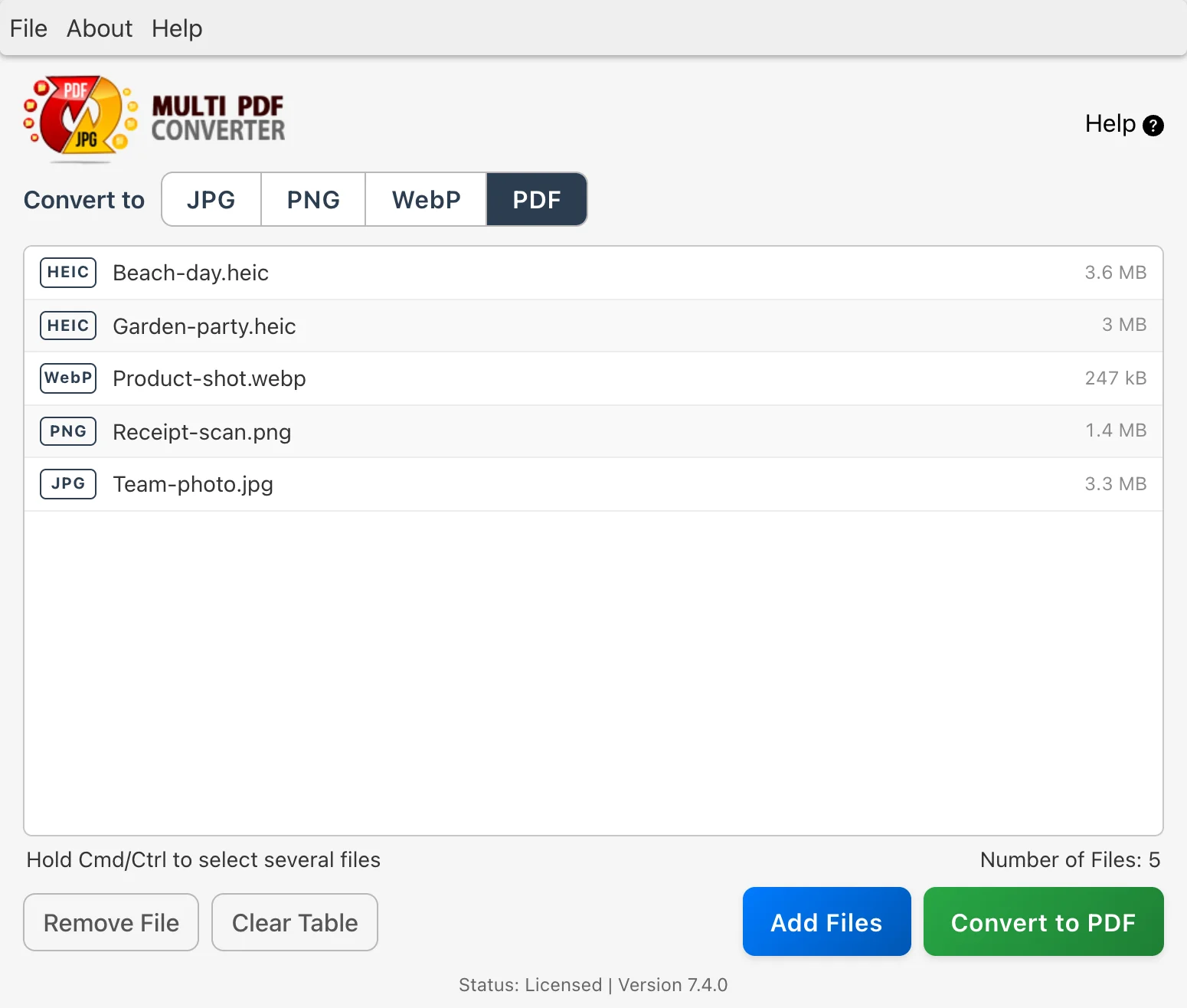
Step 4: Click Convert to PDF
Click Convert to PDF and choose where to save. Multi PDF Converter creates a Converted Files folder there and writes the PDFs into it, so your original HEIC photos are never touched or overwritten.
Step 5: Open the PDFs
Each photo becomes its own PDF with the same name, so IMG_2041.heic becomes IMG_2041.pdf. Photos taken in portrait come out in portrait, because the app applies the rotation the iPhone stored with each picture. If two files would end up with the same name, the second gets " (2)" added rather than replacing the first.
Need one PDF with every photo?
Multi PDF Converter makes one PDF per photo. It doesn't put several photos into one PDF. If you want a single document, use one of these instead.
- On a Mac (free): select the photos in Finder, right-click and choose Quick Actions → Create PDF. Or open them all in Preview, choose File → Print, then Save as PDF from the PDF menu. Details in Method 3.
- On Windows (free): print the photos to Microsoft Print to PDF from Photos or File Explorer. Details in Method 2.
- Many photos, or a set order: convert them with Multi PDF Converter, then join the PDFs with Batch PDF Merger, Essex's PDF merging app, where you can drag the pages into any order before merging.
Method 2: Windows Photos and Microsoft Print to PDF
Windows 10 and 11 include a virtual printer called Microsoft Print to PDF, which saves anything you print as a PDF. The hurdle with iPhone photos is opening them: Windows needs Microsoft's HEIF Image Extensions and HEVC Video Extensions from the Microsoft Store before the Photos app can show HEIC files. The HEVC extension is a small paid add-on unless your PC maker included it.
One photo: open it in Photos, press Ctrl+P, choose Microsoft Print to PDF as the printer, click Print and name the file.
Several photos in one PDF: select them in File Explorer, right-click and choose Print (on Windows 11, look under Show more options). Pick Microsoft Print to PDF, choose a layout such as full page, and click Print. You get one PDF with each photo on its own page.
- Built into Windows 10 and 11
- Free, and nothing is uploaded
- Makes one combined PDF from a selection
- HEIC photos won't open until the HEIF and HEVC extensions are installed
- A PDF per photo means printing each photo separately
- Print layouts can crop or shrink photos, so check the preview
Method 3: Preview and Finder on a Mac
Macs open HEIC photos without anything extra, and three built-in routes make PDFs:
- One photo: open it in Preview and choose File → Export as PDF.
- Several photos in one PDF, quickly: select the photos in Finder, right-click and choose Quick Actions → Create PDF. Finder saves one PDF next to the photos, in the order they were listed.
- Several photos in one PDF, with control over the page: open them all in Preview, select every thumbnail in the sidebar, choose File → Print, then choose Save as PDF from the PDF menu at the bottom of the print window.
- Built into every Mac, free, nothing uploaded
- Create PDF makes a combined PDF in two clicks
- Preview's print window lets you set paper size and scaling
- Mac only
- A separate PDF per photo means exporting each photo one by one
- No way to process a whole folder tree in one go
Method 4: On the iPhone itself
If the photos are still on your phone, you can make a PDF without a computer. The menus vary a little between iOS versions:
- Files app: save the photos to the Files app, select them, tap the More button (…) and choose Create PDF. You get one PDF with every photo you selected.
- Photos app: open a photo, tap Share, then Print. On the print preview, spread two fingers on the page thumbnail to open it as a PDF, then use Share to save it to Files or send it.
Turning paper documents into PDFs is a different job from converting photos you've already taken. For receipts, forms and letters, a scanning app gives you straight, cropped pages; see our guide to turning photos into PDFs on iPhone with Scaniva.
Method 5: Online HEIC to PDF converters
Browser-based converters let you upload a HEIC photo and download a PDF. That's convenient for one photo that isn't personal, but think twice with family pictures or documents: every photo is sent to someone else's server, and iPhone photos often carry the location where they were taken.
- Nothing to install
- Works on Chromebooks, tablets and borrowed computers
- Every photo is uploaded, location data and all
- Free plans usually limit file size and how many files you can convert
- Slow on large batches, because every photo has to upload first
If you only have a few photos and want to stay in the browser without uploading anything, Essex's free Squeeze tool converts HEIC photos to JPG on your own device, and our free JPG to PDF converter then turns those JPGs into a PDF.
Methods compared at a glance
| Method | Whole folders | A PDF per photo | All photos in one PDF | Photos stay on your device | Cost |
|---|---|---|---|---|---|
| Multi PDF Converter | Yes, subfolders included | Yes, in bulk | Join with Batch PDF Merger | Yes | Subscription, free trial |
| Windows Photos + Print to PDF | No | One at a time | Yes | Yes | Free (HEIC needs Microsoft's extensions) |
| Mac Preview / Finder Create PDF | No | One at a time | Yes | Yes | Free |
| iPhone Files / Print | No | One at a time | Yes | Yes | Free |
| Online converters | No | Usually | Some | No, uploaded | Free plans limited |
Converting WebP images to PDF
WebP is the image format many websites use, so images you save from a browser often arrive as .webp files that some programs won't open. The steps are the same as for HEIC: in Multi PDF Converter, choose PDF, drop in the WebP images (or a folder of them) and click Convert to PDF. Each image becomes its own PDF, and WebP and HEIC files can go in the same run.
Recent versions of Windows Photos and Preview on a Mac open WebP images too, so the print-to-PDF routes above also work for a few WebP files. If you'd rather have JPG or PNG files than PDFs, see how to convert WebP to JPG or PNG.
FAQ: common HEIC to PDF questions
Related guides
- How to convert HEIC to JPG on Windows and Mac
- How to convert WebP to JPG or PNG
- How to convert PNG to JPG and JPG to PNG
- How to convert PNG and JPG to WebP in bulk
- How to convert PNG to PDF
- JPG to PDF: free in-browser converter
- Batch PDF Merger: join PDFs into one file
- Back to the Multi PDF Converter overview
- Download the Multi PDF Converter free trial

