How to Convert PNG and JPG to WebP in Bulk (Windows & Mac)
Updated September 2026 · PNG and JPG to WebP on Windows and Mac, one image or whole folders
WebP images are usually noticeably smaller than JPG or PNG files at similar visual quality, so pages that use them load faster. The catch is that the image tools built into Windows and macOS can't save WebP. This guide covers the practical ways to convert PNG and JPG to WebP in bulk, from a free tool that runs in your browser to a desktop app that converts whole folders, and when your website can do it for you.
Convert PNG and JPG to WebP: overview
WebP is an image format made for the web. It handles photos like JPG and graphics with transparent backgrounds like PNG, and a WebP file is usually noticeably smaller than either at similar visual quality. Smaller images mean faster pages, less bandwidth, and a better score in page-speed tests. Current versions of Chrome, Edge, Firefox and Safari all display WebP.
To convert PNG to WebP or JPG to WebP, the right method depends on how many images you have and how much control you want:
- Multi PDF Converter: a desktop app for Windows and Mac. Converts whole folders of JPG, PNG and HEIC images (and PDF pages) to WebP in one run and saves the results straight into a folder.
- Squeeze: Essex's free image compressor. Runs in your browser, uploads nothing, and has a WebP quality slider.
- Squoosh: Google's free web app. One image at a time, with every setting and a side-by-side preview.
- cwebp: Google's free command-line encoder, for people comfortable with a terminal.
- Photoshop or GIMP: fine if you already use them, one image at a time.
Method 1: Multi PDF Converter (whole folders, Windows & Mac)
Multi PDF Converter is a desktop app for Windows and macOS that converts between PDF, JPG, PNG, HEIC and WebP on your computer. To make WebP, pick WebP as the output, drop in your images or a whole folder, and convert. It's the right pick when you convert images regularly, when some of your files are PDFs or iPhone HEIC photos, or when you want the results written straight to a folder instead of downloaded.
- Whole folders at once, subfolders included
- JPG, PNG, HEIC photos and even PDF pages to WebP in one run
- Transparent PNG backgrounds stay transparent
- Files never leave your computer
- Native Windows and Mac apps
- 30-day money-back guarantee
- Requires download and install
- Paid subscription after the free trial
- One fixed WebP quality: no slider. For fine-tuning, use Squeeze
Step 1: Download Multi PDF Converter
The conversion runs on your own machine. Download the free trial for Windows 10 or 11 (64-bit), or for macOS 13 or later on Apple silicon and Intel Macs, and try it on your own images before you buy.
Step 2: Choose WebP as the output
At the top of the window, Multi PDF Converter reads Convert to [JPG] [PNG] [WebP] [PDF]. Click WebP. The app remembers your choice for next time.
Step 3: Add your images or a whole folder
Drag your PNG and JPG files, or a whole folder of them, onto Drop files or folders here. Folders are added with everything inside, subfolders included. You can also click Click here to choose files, and Add Files once some are listed. Mixed file types are fine. Any image that is already WebP is greyed out and skipped.
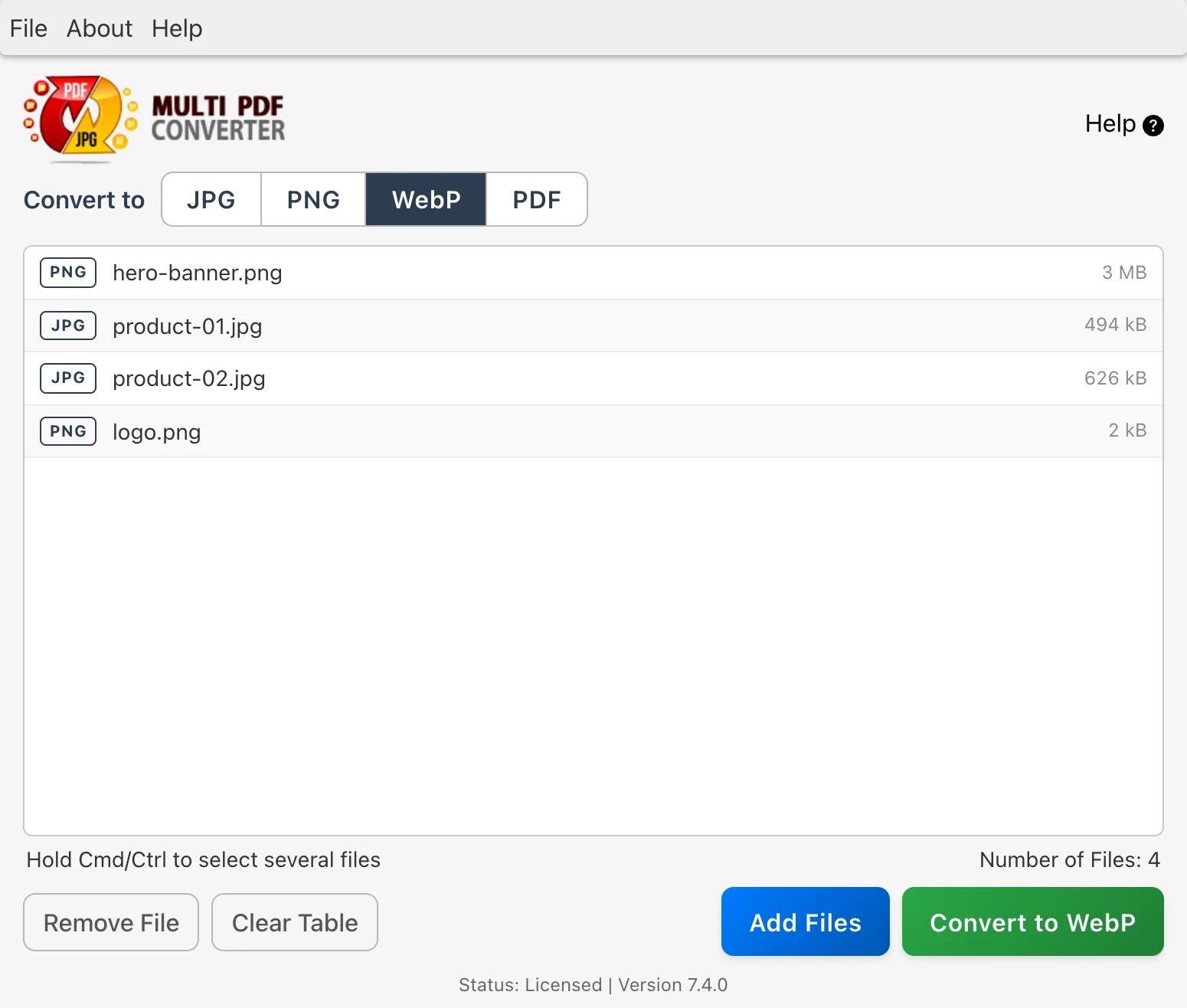
Step 4: Click Convert to WebP
Click Convert to WebP and choose where to save. The WebP files go into a Converted Files folder inside the folder you pick, so nothing is overwritten. If two images share a name, the second is saved with " (2)" added.
Step 5: Use your WebP images
Each image becomes a WebP file with the same name, ready to upload. Transparent PNG backgrounds stay transparent. Camera details such as the date and location aren't copied into the WebP files, which is usually what you want on a website. Your original JPG and PNG files are left as they were.
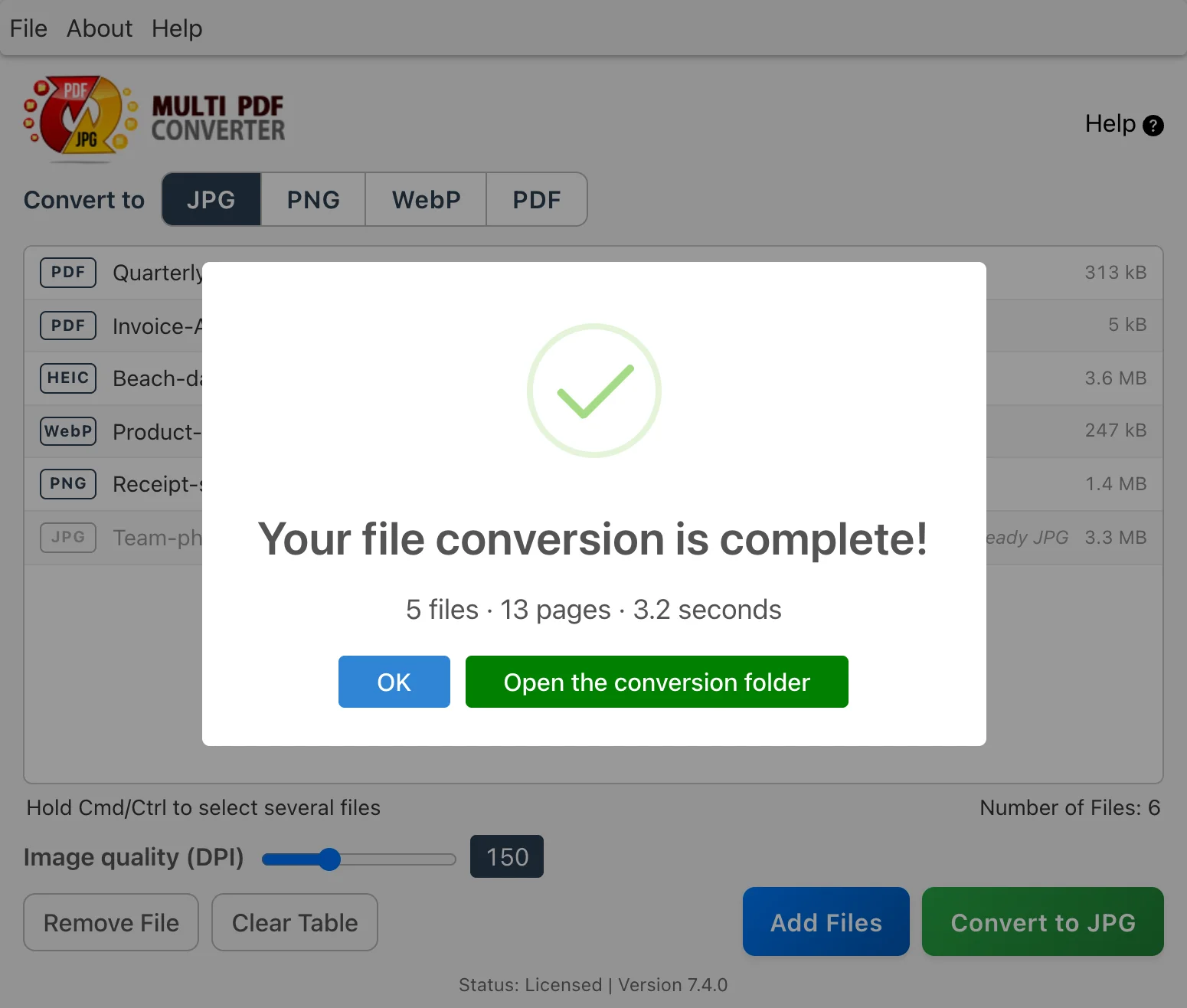
PDFs too: drop a PDF in the same run and every page becomes a WebP image. When a PDF is listed, an Image quality (DPI) slider appears for the page resolution: 150 DPI by default, from 50 up to 354.
Method 2: Squeeze (free, in your browser)
If you'd rather not install anything, or you want to tune the result, use Squeeze, Essex's free image compressor. It runs entirely in your browser: your images are processed on your own computer and nothing is uploaded. Choose files or a whole folder, set Output format to All to WebP, move the WebP quality slider until you're happy with the size, and download everything as a ZIP.
- Free, nothing to install
- WebP quality slider, so you choose the size
- Files or whole folders, and iPhone HEIC photos
- Nothing leaves your device
- Images only: no PDF pages
- Results arrive as a ZIP download to unpack
- Works in a browser tab, so keep it open until the run finishes
Method 3: Squoosh (one image at a time)
Squoosh is a free web app from Google that converts one image at a time in your browser. It shows the original and the WebP result side by side, with every encoder setting, which makes it a good way to see what a given quality looks like before you convert a whole batch another way.
- Free, nothing to install
- Side-by-side preview and detailed settings
- One image at a time
- Too slow for a folder of product photos
Method 4: cwebp on the command line
Google's free cwebp encoder, part of the libwebp package, converts PNG and JPG to WebP from a terminal. On a Mac, install it with Homebrew (brew install webp); on Windows, download the libwebp tools from Google's WebP developer site. Then, in the folder with your images, one line converts them all. The -q option sets the quality from 0 to 100.
macOS or Linux (Terminal):
for f in *.png *.jpg; do cwebp -q 80 "$f" -o "${f%.*}.webp"; doneWindows (PowerShell):
Get-ChildItem -Path .\* -Include *.png,*.jpg | ForEach-Object { cwebp -q 80 $_.FullName -o "$($_.DirectoryName)\$($_.BaseName).webp" }- Free, full control over every setting
- Scriptable for repeat jobs
- Command line only
- Setup and typing mistakes cost time; subfolders need a longer script
Method 5: Photoshop or GIMP
If you already edit images in them, recent versions of Adobe Photoshop can save a copy as WebP (File → Save a Copy, then choose WebP), and GIMP exports WebP through File → Export As with a .webp file name. Both work one image at a time unless you set up actions, scripts or plugins.
- Good if you're editing the image anyway
- Full control over quality
- One image at a time by default
- Photoshop needs a subscription
Why macOS Preview and Windows Paint can't make WebP
The free tools that come with your computer handle most image jobs, but not this one. On a Mac, Preview's Export menu lists formats like JPEG, PNG, HEIC and TIFF, and the Finder's Convert Image quick action offers JPEG, PNG and HEIF. None of them is WebP. On Windows, Paint and Photos save formats like PNG, JPEG and BMP, but not WebP. That's why converting to WebP always needs one of the tools above.
Does your website convert images for you?
Before converting a whole media library, check your platform. Many content management systems, image plugins and CDNs can convert uploads to WebP, or serve WebP to browsers that support it, automatically. If yours does, you can keep uploading JPG and PNG. Converting the files yourself makes sense when you host images on your own server, hand finished WebP files to a developer or agency, or your platform doesn't do it for you.
Methods compared at a glance
| Method | Many images at once | Files stay on your computer | Choose the quality | PDF pages too | Cost |
|---|---|---|---|---|---|
| Multi PDF Converter | Yes, whole folders | Yes | No, one fixed quality | Yes | Subscription, free trial |
| Squeeze | Yes, files or folders | Yes | Yes | No | Free |
| Squoosh | One at a time | Yes | Yes | No | Free |
| cwebp | Yes, with a script | Yes | Yes | No | Free |
| Photoshop / GIMP | One at a time by default | Yes | Yes | No | Subscription / free |
| macOS Preview / Windows Paint | Can't save WebP | ||||
FAQ: common PNG and JPG to WebP questions
Related guides
- How to convert WebP to JPG or PNG: the reverse direction
- How to convert PNG to JPG and JPG to PNG
- How to convert iPhone HEIC photos to JPG
- How to convert HEIC photos to PDF
- How to batch convert PDF to JPG
- Squeeze: free image compressor and WebP converter in your browser
- Back to Multi PDF Converter overview
- Download Multi PDF Converter free trial

