How to Convert PNG to JPG and JPG to PNG on Windows & Mac
Updated September 2026 · PNG and JPG images on Windows and Mac, one file or a whole folder
A website form that only takes JPG. A folder of screenshots too big to email. A JPG logo you need as a PNG for a slide. Converting PNG to JPG or JPG to PNG takes seconds for one image with the tools already on your computer. This guide covers those free methods on Windows and Mac, a way to convert a whole folder at once, and what actually changes when you switch formats.
PNG or JPG: what changes when you convert
PNG and JPG are both everyday image formats, but they store pictures differently, and that decides which way you should convert.
- PNG is lossless. Every pixel is kept exactly, so text, lines and screenshots stay sharp. PNG can also be transparent, which is why logos and icons often come as PNG. The price is size: a photo saved as PNG is usually much bigger than the same photo as a JPG.
- JPG is lossy. It discards detail you mostly can't see to keep photos small, which is why cameras, phones and websites use it. It can't be transparent, and sharp edges such as text can pick up faint blocky or fuzzy “artifacts”.
So in practice:
- Convert PNG to JPG when a photo or large image needs to be smaller, or when a website, form or app only accepts JPG.
- Convert JPG to PNG when a program or upload asks for PNG, or before you edit an image many times and don't want every save to lose a little more. PNG doesn't bring back detail the JPG already lost; it only stops further losses, and the file gets bigger.
If what you really need is a PDF, see our free JPG to PDF tool or the guide to converting PNG to PDF.
Method 1: Multi PDF Converter (many images or whole folders)
Multi PDF Converter is a desktop app for Windows and Mac that converts between PNG, JPG, WebP, HEIC and PDF on your own computer. It's the practical choice when you have more than a few images, a whole folder of them, or files you'd rather not upload. It works in both directions: pick JPG to turn PNGs into JPGs, or PNG to turn JPGs into PNGs.
- Converts a whole folder in one run, subfolders included
- Works both ways, and also handles WebP, HEIC and PDF
- Files stay on your computer; nothing is uploaded
- Your original images are left untouched
- Windows and Mac
- 30-day money-back guarantee
- Needs a download and install
- Paid subscription after the free trial
- No quality or size settings: JPGs are saved at a fixed, high quality
- Photo details such as the capture date and location aren't copied to the new files
Step 1: Download Multi PDF Converter
Download the free trial for Windows 10 or 11, or macOS 13 or later (Apple silicon and Intel), and try it on your own images before you decide.
Step 2: Choose JPG (or PNG) as the output
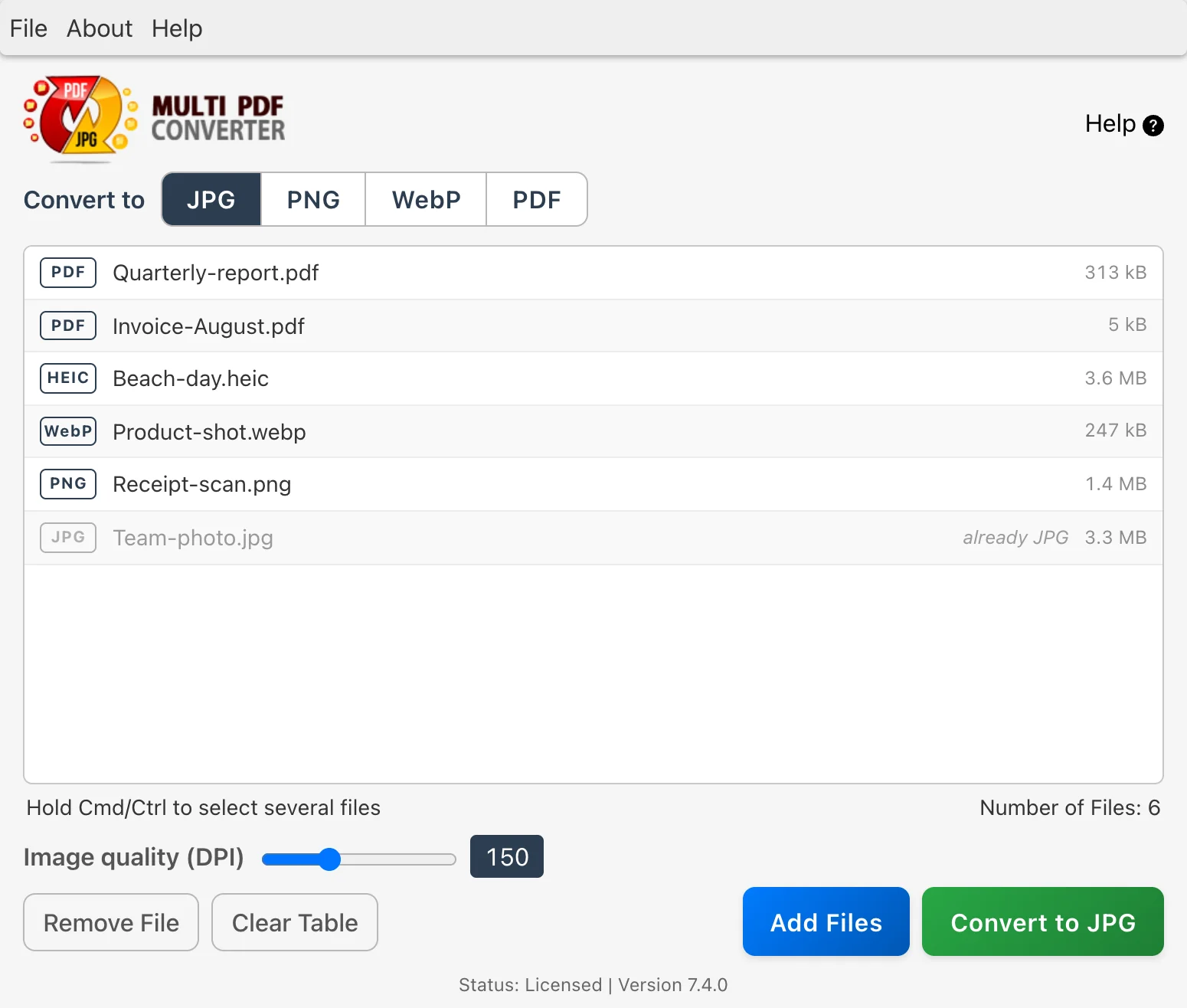
At the top of the window, Multi PDF Converter asks what you want to make: Convert to JPG, PNG, WebP or PDF. Click JPG to convert PNG to JPG, or PNG to convert JPG to PNG. Your choice is remembered for next time.
Step 3: Add your images or a whole folder
Drag PNG files, or a folder of them, onto the window where it says Drop files or folders here, or click Click here to choose files. A dropped folder brings its subfolders along too. Once files are listed, Add Files adds more. Anything already in the format you picked (a JPG, when you're making JPGs) is greyed out and skipped, so a folder with a mix of formats is fine.
Step 4: Click Convert to JPG
The button names the format you chose: Convert to JPG. Choose where to save, and Multi PDF Converter writes the new files into a Converted Files folder there. Your original images are never overwritten, and if two new files would end up with the same name, the second gets “(2)” added.
Step 5: Check the results
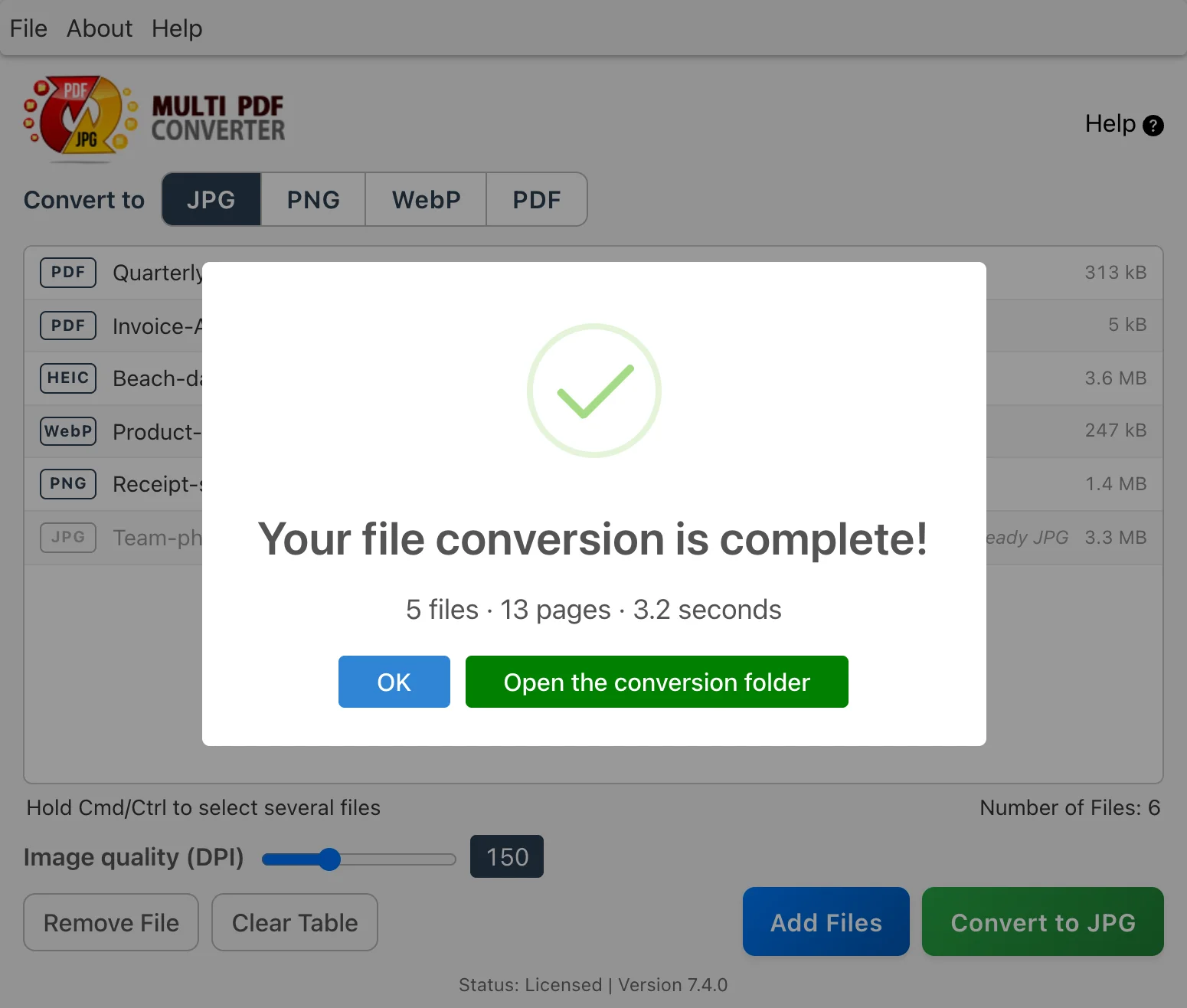
PNGs converted to JPG are white wherever the PNG was transparent (here's why). JPGs converted to PNG look the same as before but take more space. Photos with a rotation setting come out the right way up. Camera details, the capture date, location and embedded colour profiles aren't copied into the new files.
Method 2: Paint on Windows (free)
For one image at a time, Windows already has what you need. Paint is the most predictable route:
- Right-click the image in File Explorer and choose Open with → Paint.
- Choose File → Save as and pick JPEG picture, or PNG picture to go the other way.
- Name the new file and click Save.
Transparent areas of a PNG come out white in the JPG. The Photos app in Windows 11 can also save an edited copy in another format, but its menus differ between versions, so Paint is the more predictable choice.
- Already on every Windows PC
- Free, nothing to upload
- One image at a time
- No way to convert a folder
Method 3: Preview and Finder on a Mac (free)
Macs have two built-in ways, and one of them handles several images at once.
Preview. Open the image in Preview, choose File → Export, set Format to JPEG or PNG and click Save. The JPEG option has a quality slider in the same dialog. To do several images, open them together in Preview, select them all in the sidebar and choose File → Export Selected Images, then click Options to pick the format.
Finder’s Convert Image quick action. On macOS 12 Monterey and later, select the images in Finder, right-click and choose Quick Actions → Convert Image. Pick JPEG or PNG and an image size, then click the convert button. The new files appear next to the originals. It’s free and handles a selection of images well.
Where they fall short: both work on the files you select, so images spread across subfolders take extra steps, and neither is available on Windows.
- Built into every Mac
- Free, nothing to upload
- Finder’s Convert Image handles several images at once
- Mac only
- Folders with subfolders take extra steps
Method 4: Online converters and in-browser tools
Search for “png to jpg” and you’ll find plenty of websites that convert an image you upload. They’re handy for one file on a borrowed computer or a Chromebook. The trade-offs:
- Your images are uploaded to someone else’s server, which matters for screenshots of work systems, ID documents or anything personal.
- Free versions usually limit file size and how many files you can convert a day.
- Ads and sign-up prompts slow things down.
If you only have a few images and don’t want to upload them, Essex Software’s free in-browser photo compressor converts images inside your browser, without uploading them, and can save JPG, PNG, WebP or AVIF.
Methods compared at a glance
| Method | Many images at once | Files stay on your computer | Windows | Mac | Cost |
|---|---|---|---|---|---|
| Multi PDF Converter | Yes, including whole folders | Yes | Yes | Yes | Subscription, free trial |
| Paint (Windows) | No | Yes | Yes | No | Free |
| Preview (Mac) | Several, via Export Selected Images | Yes | No | Yes | Free |
| Finder Convert Image (Mac) | Yes, selected files | Yes | No | Yes | Free |
| Essex in-browser compressor | A few at a time | Yes, in your browser | Yes | Yes | Free |
| Online converters | Capped on free versions | No, uploaded | Yes | Yes | Free version limited |
Transparent PNG to JPG: why the background turns white
JPG has no way to store transparency: every pixel has a colour. So when a PNG with a see-through background becomes a JPG, something has to fill the gaps. Multi PDF Converter fills them with white, which looks right on paper and on most web pages. Tools that don’t handle this can leave a black background instead, which is how logos end up sitting in dark boxes.
If you need to keep the transparency, don’t convert to JPG. Keep the PNG, or convert to WebP, which also supports transparency and makes smaller files; see how to convert PNG and JPG to WebP.
Going the other way, a JPG converted to PNG doesn’t gain a transparent background. Its white (or any other) background stays; removing a background is an editing job, not a format change.
FAQ: PNG to JPG and JPG to PNG
Related guides
- How to convert HEIC to JPG on Windows and Mac
- How to convert WebP to JPG or PNG
- How to convert PNG and JPG to WebP in bulk
- How to convert HEIC to PDF
- How to convert PNG to PDF
- How to batch convert PDF to JPG
- JPG to PDF: free in-browser tool
- Back to Multi PDF Converter overview
- Download Multi PDF Converter free trial

