How to Convert HEIC to JPG on Windows & Mac (Batch, Offline)
Updated September 2026 · Covers iPhone HEIC photos on Windows and Mac, one photo or a whole folder
Your iPhone saved your photos as HEIC, and now Windows won't open them, an upload form rejects them, or a colleague can't view them. This guide shows how to convert HEIC to JPG on Windows and Mac: a desktop app that converts a whole folder at once without uploading anything, the free tools already built into Windows, macOS and the iPhone, and when an online converter is fine.
Convert HEIC to JPG: overview
What a HEIC file is. Since iOS 11 in 2017, iPhones and iPads have saved photos as HEIC by default. HEIC is Apple's name for photos in the HEIF format, which takes less space than a JPG of similar quality. That's good for your phone's storage and less good everywhere else.
Why HEIC photos cause trouble. Windows can't open HEIC photos until two add-ons from the Microsoft Store are installed. Plenty of older apps can't read them at all, and many websites and upload forms (job applications, print shops, government portals) accept only JPG, PNG or PDF. JPG is the format that opens everywhere, which is why "HEIC to JPG" is the conversion most people need.
Your options, in short:
- Multi PDF Converter: a desktop app for Windows and Mac that converts one photo or a whole folder of HEIC photos to JPG, on your computer.
- Windows Paint and Photos: free, one photo at a time, after installing Microsoft's HEIF and HEVC add-ons.
- Mac Finder, Preview and Photos: free, and the Finder's Convert Image action handles several photos at once.
- iPhone settings: make the camera shoot JPG, or convert automatically when you copy photos to a computer.
- Online converters and free apps: fine for a few photos you don't mind uploading, plus two free options that don't upload.
If you're not sure between JPG and PNG: pick JPG for photos you want to share, email or upload. Pick PNG only if you'll edit the photo again and want no quality loss at all (see HEIC to PNG, WebP or PDF).
Method 1: Multi PDF Converter (many photos, Windows & Mac)
Multi PDF Converter is a desktop app for Windows and Mac that converts HEIC photos to JPG, PNG, WebP or PDF on your own computer. It reads HEIC photos itself, so on Windows you don't need Microsoft's add-ons. It's the right pick when you have more than a handful of photos, a whole folder from your phone, or pictures you'd rather not upload to a website.
- Converts whole folders, subfolders included
- No Microsoft add-ons needed on Windows
- Photos come out the right way up
- Files never leave your computer
- The same app makes PNG, WebP and PDF, and turns PDFs into images
- Windows 10 and 11, and Macs with Apple silicon or Intel
- 30-day money-back guarantee
- Requires download and install
- A paid subscription after the free trial
- No quality slider: every JPG is written at one high quality setting
- Location, capture date and other hidden photo details aren't copied to the JPGs
Step 1: Download Multi PDF Converter
It runs on your computer, not in a browser. Download the free trial for Windows 10 or 11 (64-bit) or macOS 13 or later, and try it on your own photos before you buy.
Step 2: Choose JPG as the output
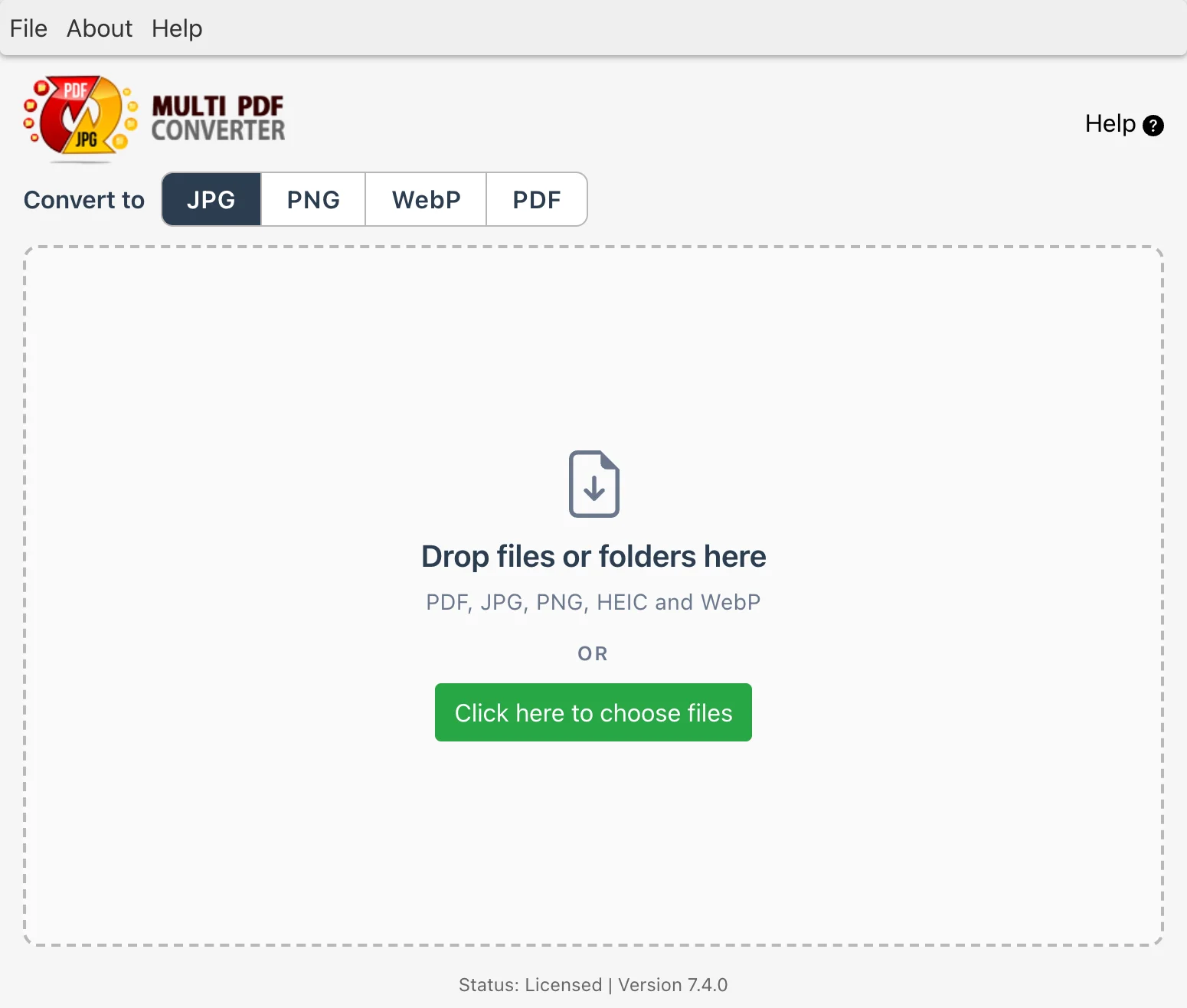
The top of the window reads Convert to JPG · PNG · WebP · PDF. Click JPG; it's selected by default the first time you open the app, and the app remembers your choice.
Step 3: Add your HEIC photos
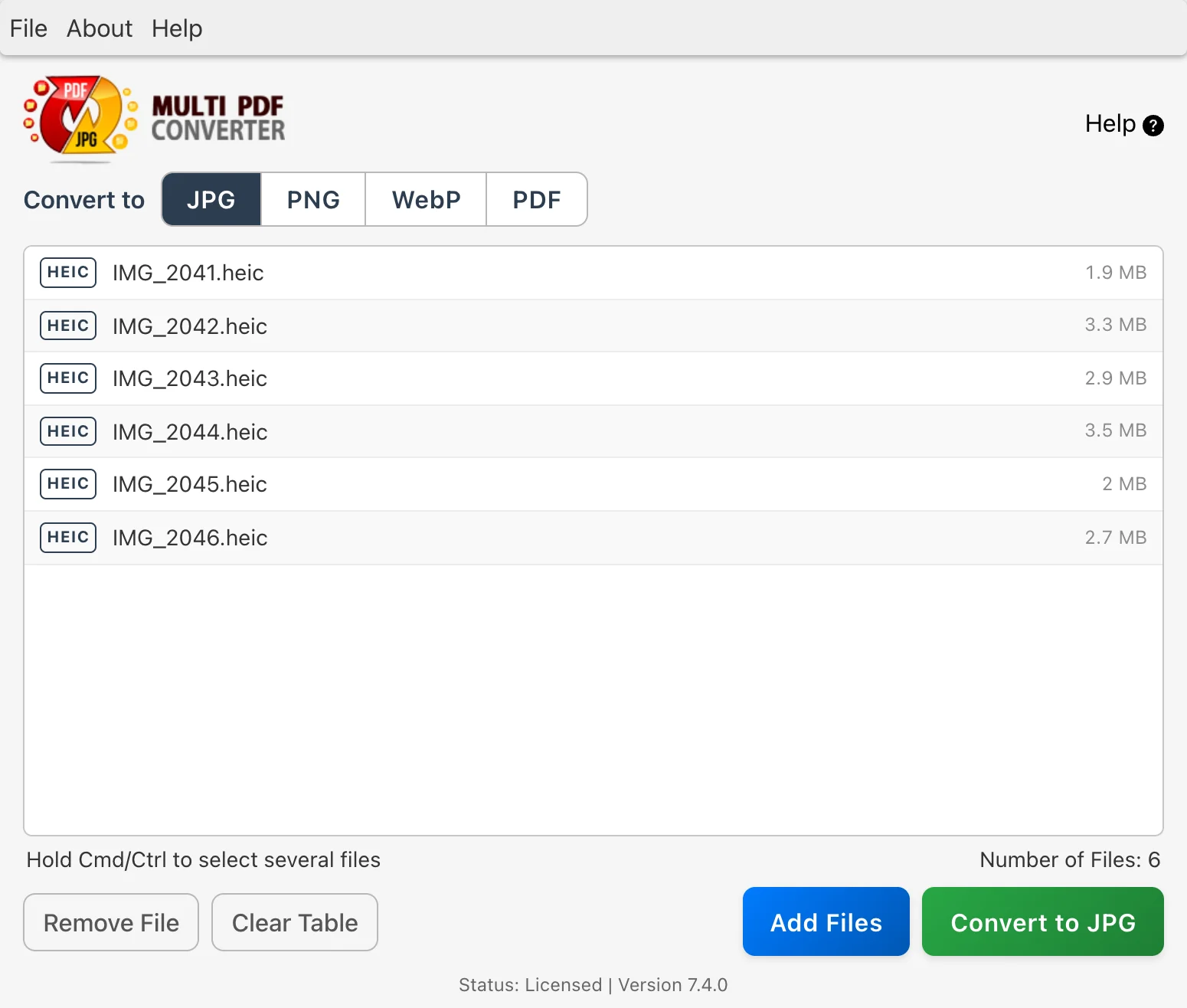
Drag the photos, or the whole folder they're in, onto Drop files or folders here. Subfolders are included, so a folder of photos copied off your phone goes in with one drop. You can also click Click here to choose files, or Add Files once some are listed. Mixed folders are fine: photos that are already JPGs are greyed out and skipped.
Step 4: Click Convert to JPG and choose a folder
The button follows your choice, so it reads Convert to JPG. Pick where the photos should go. Multi PDF Converter creates a Converted Files folder there and writes one JPG for each photo, with the same name. If two photos would end up with the same name, the second gets " (2)" added.
Step 5: Open your JPGs
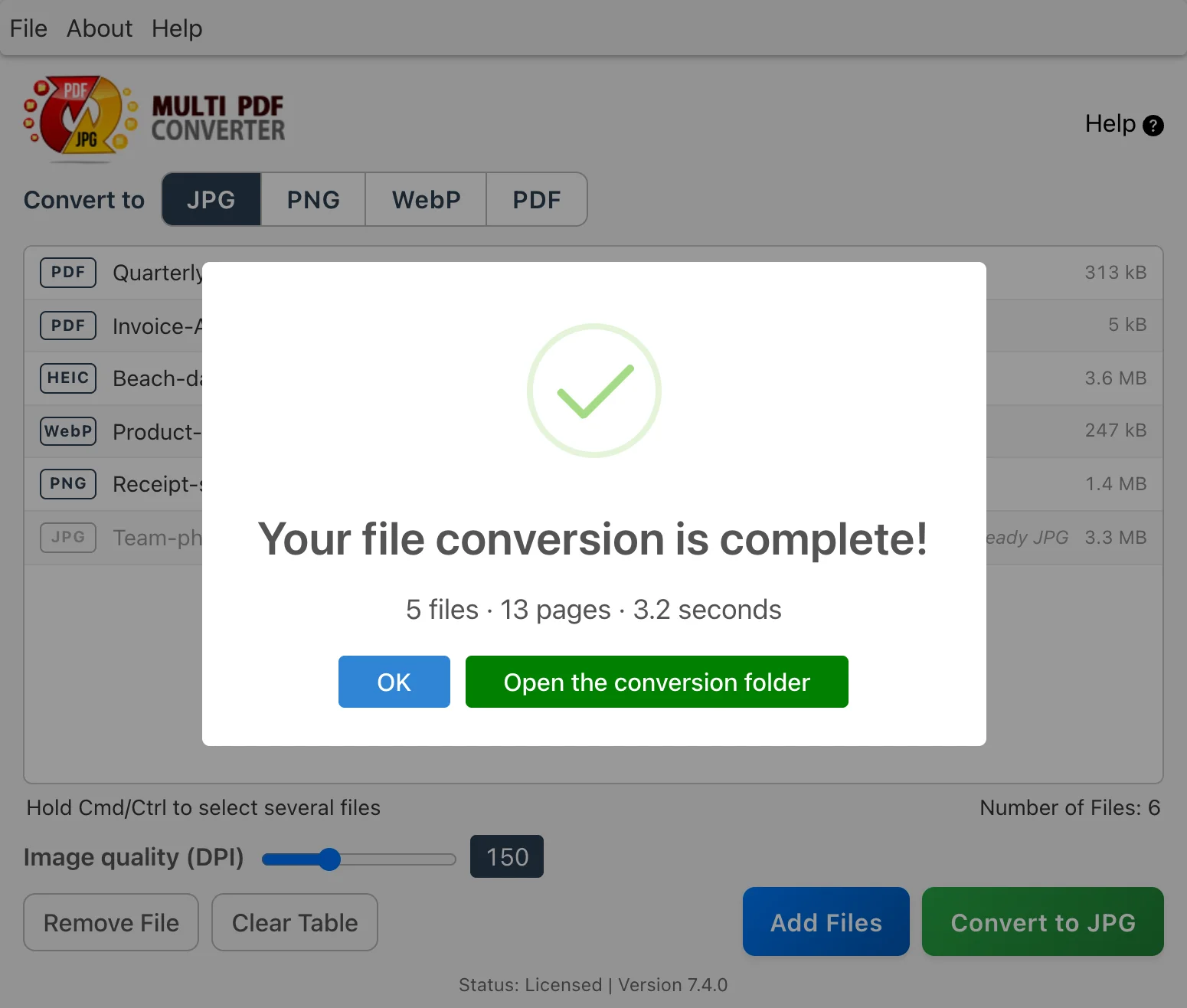
When the run finishes, a dialog tells you how many photos were converted. The JPGs come out the right way up, as they looked on your phone, and your original HEIC photos are left exactly as they were.
What the JPGs keep, and what they don't. Each JPG has the photo's full picture, turned the right way up. It doesn't carry the photo's hidden details: location, capture date, camera settings and colour profile aren't copied. That's useful before you share photos, since the location isn't in the file. It also means photo apps may sort the JPGs by when the files were made rather than when the photos were taken.
Method 2: Windows Paint and Photos (free, one photo at a time)
Windows can open and save HEIC photos once two add-ons from the Microsoft Store are installed: HEIF Image Extensions (free, and already on many PCs) and HEVC Video Extensions (a small paid add-on, unless your PC came with the free "from Device Manufacturer" version). With both in place:
- Open the HEIC photo in Paint.
- Choose File > Save as > JPEG picture.
- Name the file and click Save.
The Photos app can show HEIC photos too once the add-ons are installed, but Paint is the quickest way to save one as a JPG.
- Built into Windows 10 and 11
- Nothing uploaded
- Fine for the odd photo
- One photo at a time
- Needs two add-ons, and one of them may be paid
- Windows only
Method 3: Mac Finder, Preview and Photos (free)
Macs open HEIC photos out of the box, and there are three free ways to make JPGs:
- Finder's Convert Image action (macOS 12 Monterey or later): select the photos in a Finder window, Control-click them, choose Quick Actions > Convert Image, pick JPEG and a size, and click Convert to JPEG. The JPGs appear next to the originals. This handles many selected photos at once.
- Preview: open the photo, choose File > Export, set Format to JPEG, and save.
- Photos: select the pictures in your library, choose File > Export > Export Photos, set Photo Kind to JPEG, and export.
- Built into every recent Mac
- Free, nothing uploaded
- Convert Image does several photos in one go
- Mac only
- Convert Image works on the photos you select in one Finder window, not on folders inside folders
- Preview converts one photo at a time
Method 4: Stop HEIC at the source (iPhone settings)
If you'd rather not deal with HEIC at all, change two settings on the iPhone:
- Shoot JPG: open Settings > Camera > Formats and choose Most Compatible. New photos are saved as JPG.
- Convert when copying: set Settings > Photos > Transfer to Mac or PC to Automatic. Photos copied to a computer with a cable arrive as JPGs.
- Free, and nothing to convert later
- Works for every new photo
- Photos you already took stay HEIC
- JPG photos take more space on the phone
- No help with HEIC photos other people send you
Method 5: Online converters and free desktop apps
Online HEIC converters let you drop a photo into a web page and download a JPG. That's fine for a few photos you don't mind uploading. Keep in mind that photos often carry the location where they were taken, and every photo you convert goes to someone else's server. Free versions usually limit file size or how many photos you can convert.
Two free options that don't upload anything:
- iMazing HEIC Converter is a free desktop app for Mac and Windows that converts HEIC photos to JPG or PNG by drag and drop. If HEIC photos are all you ever convert, it's a reasonable free choice.
- Our free Squeeze tool converts a few HEIC photos to JPEG right in your browser. The photos are processed on your computer and never uploaded.
- Nothing to buy
- Online tools work on any device, including Chromebooks
- Online tools upload your photos, location and all
- Free tiers limit size or numbers
- The free apps convert HEIC only, not PDFs or WebP
Methods compared at a glance
| Method | Many photos at once | Files stay on your computer | Windows | Mac | Makes | Cost |
|---|---|---|---|---|---|---|
| Multi PDF Converter | Yes, whole folders | Yes | Yes | Yes | JPG, PNG, WebP, PDF | Subscription, free trial |
| Windows Paint | One at a time | Yes | Yes | No | JPG, PNG and more | Free; one add-on may be paid |
| Mac Finder Convert Image | Yes, selected photos | Yes | No | Yes | JPEG, PNG, HEIF | Free |
| Mac Preview | One at a time | Yes | No | Yes | JPEG, PNG and more | Free |
| iMazing HEIC Converter | Yes | Yes | Yes | Yes | JPG, PNG | Free |
| Essex Squeeze (browser) | A few at a time | Yes, no upload | Yes | Yes | JPEG, WebP, AVIF, PNG | Free |
| Online converters | Capped | No, uploaded | Yes | Yes | Varies | Free tier limited |
HEIC to PNG, WebP or PDF instead?
JPG is the right answer most of the time, but not always:
- JPG opens everywhere and keeps photos small. Use it for sharing, email and upload forms.
- PNG loses no quality at all, but photo files get much larger. Use it if you'll edit the photo again or print it large and want every detail.
- WebP makes files smaller than JPG and suits websites, but some older apps still can't open it. See how to convert images to WebP.
- PDF suits forms that ask for a document. Each photo becomes its own PDF; see how to convert HEIC to PDF.
In Multi PDF Converter they're all the same few clicks: pick the format at the top of the window, add the photos, and convert.
FAQ: common HEIC to JPG questions
Related guides
- How to convert HEIC to PDF (iPhone photos to PDF)
- How to convert WebP to JPG or PNG
- How to convert PNG to JPG and JPG to PNG
- How to convert PNG and JPG to WebP in bulk
- How to batch convert PDF to JPG
- How to convert PNG to PDF
- Back to Multi PDF Converter overview
- Download Multi PDF Converter free trial

