How to Convert PNG to PDF — Step-by-Step Methods for Mac & Windows
Updated May 2026 · Covers PNG images on Mac and Windows, single file or batch
A screenshot you need as a PDF for a form upload. A folder of PNG logos that need to ship as PDFs. A scanned PNG export from your phone camera. Whatever the case, this guide walks through the five practical methods to convert PNG to PDF on Mac and Windows in 2026, with the merge-vs-convert distinction most tutorials skip.
Convert PNG to PDF — overview
To convert PNG to PDF on Mac or Windows, you have five practical options. The right pick depends on how many images you have, whether the content is sensitive, and whether you already pay for Adobe Acrobat or want a free path.
- Multi PDF Converter — desktop app, processes many PNGs in one job, runs locally on Windows and macOS.
- macOS Preview — built into every Mac, free, fastest path for a single PNG on Mac.
- Windows Photos + Print to PDF — built into Windows, free, single image or small batch.
- Adobe Acrobat Pro — works if you already pay for Adobe.
- Online PNG to PDF converters — convenient for a single small file; not for sensitive content.
Use the table of contents above to jump to whichever method fits, or read on for the why-and-how of each.
Method 1: Multi PDF Converter (recommended for many files)
Multi PDF Converter is a desktop app for Windows and macOS that converts PNG (and JPG/JPEG) images to PDF files locally on your computer. It's the right pick when you have more than a handful of PNGs to convert, when content shouldn't be uploaded, or when you want one tool that handles both image-to-PDF and PDF-to-image directions.
- Handles many images in one job
- Files never leave your computer
- Native Windows + macOS builds
- Same tool also converts PDF to PNG, PDF to JPG, and JPG to PDF
- Lossless conversion — PNG quality preserved exactly
- 30-day money-back guarantee
- Requires download and install
- Paid app (subscription) with a free trial
- Creates one PDF per image — see merge vs. convert if you want all PNGs in a single combined PDF
Step 1: Download Multi PDF Converter
This runs locally on your machine. Download the free trial for Windows or macOS. Try it on your own images before you buy.
Step 2: Pick PDF as the output
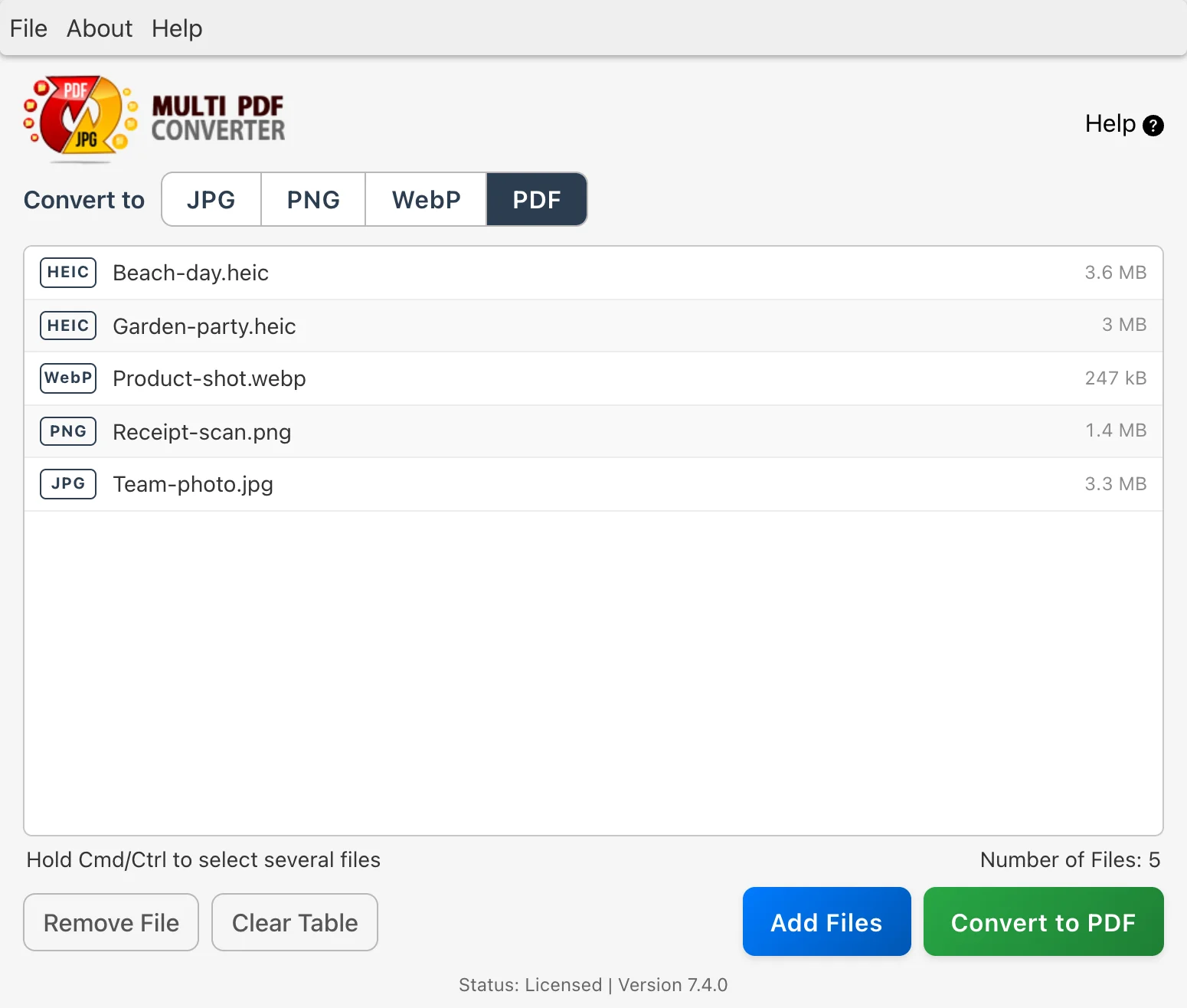
Open Multi PDF Converter and click PDF in Convert to JPG · PNG · WebP · PDF at the top of the window. The same step also turns JPG, iPhone HEIC and WebP images into PDFs.
Step 3: Add your PNG images
Drag your PNG files into the window, all at once, or drop the whole folder they are in (subfolders included). Or click Click here to choose files; once files are listed, Add Files adds more.
Step 4: Convert and pick an output folder
Click Convert to PDF and choose where to save. Multi PDF Converter writes one PDF for each image into a Converted Files folder inside the folder you pick. Your original PNG files are left untouched.
Step 5: Open the converted PDFs
Each input PNG produces a PDF with the same filename. PNG is a lossless format and the conversion preserves pixel-perfect quality — the PDF looks identical to the source image.
Method 2: macOS Preview (free on Mac)
If you're on a Mac and need to convert a single PNG to PDF — or a small handful — Preview is built into macOS and free. Open the PNG in Preview, choose File → Export as PDF, name the file, save.
For a quick combine — multiple PNGs into a single multi-page PDF — select all the images in Finder, right-click → Open With → Preview, then File → Print → PDF dropdown → Save as PDF. Preview produces one PDF with each image on its own page.
- Already installed on every Mac
- Free, no install, no signup
- Handles both single conversion and image-stitch into one PDF
- Mac only
- Awkward for large batches — no progress bar, no batch UX
- Print-to-PDF workflow hidden under File → Print, not File → Export
Method 3: Windows Photos / Print to PDF (free on Windows)
Windows 10 and 11 include a built-in "Microsoft Print to PDF" virtual printer. Open the PNG in the Photos app, hit Ctrl+P, pick Microsoft Print to PDF as the printer, click Print, save the resulting PDF.
For multiple PNGs in a single PDF, select all of them in File Explorer, right-click → Print, choose Microsoft Print to PDF, then Print. Windows writes one PDF containing each image on its own page.
- Already installed on every Windows 10/11 machine
- Free, no install
- Handles single conversion and image-stitch into one PDF
- Windows only
- "Print" UI is unintuitive for non-Windows users
- Default print settings may downsample PNG quality slightly
Method 4: Adobe Acrobat (if you already have a subscription)
If you already pay for Adobe Acrobat Pro, File → Create → PDF from File covers single-PNG conversion. For multiple PNGs into one PDF, Combine Files handles the stitch.
- Best if you're already in the Adobe ecosystem
- Strong Combine Files UI for stitching many images into one PDF
- Fine-grained page-size and orientation controls
- Subscription pricing (~$15–20/month)
- Overkill for a single-PNG conversion
- Heavy install, frequent updates
Method 5: Online PNG to PDF converters (caps and privacy tradeoffs)
Browser-based tools let you drag a PNG in and download a PDF. Fine for a one-off non-sensitive image. The catch: every image you upload is sent to a third-party server.
- Nothing to install
- Cross-platform — works on Chromebooks, phones, tablets
- Fine for tiny non-sensitive files
- Every image is uploaded — don't use for screenshots of internal dashboards, signed documents, medical or financial images
- Free tiers cap file size (typically 5–25 MB)
- Free tiers throttle to a handful per day
- Some tools re-encode PNGs as JPG-style lossy compression, defeating the point of using PNG
Methods compared at a glance
| Method | Many at once | Files stay local | Lossless quality | Cost |
|---|---|---|---|---|
| Multi PDF Converter | Yes | Yes | Yes | Subscription, free trial |
| macOS Preview | Small batches only | Yes | Yes | Free |
| Windows Photos / Print to PDF | Small batches only | Yes | Default print may downsample | Free |
| Adobe Acrobat Pro | Yes | Yes | Yes | ~$15–20 / month |
| Online tools | Capped / throttled | No — uploaded | Often re-encoded | Free tier limited |
Convert vs. merge — single PDFs or one combined PDF
Two different outcomes people mean by "convert PNG to PDF":
- Convert — each PNG becomes its own PDF file. A batch of 10 PNGs produces 10 PDFs. This is what Multi PDF Converter does, and what Adobe Acrobat does by default on single-file conversion.
- Merge / stitch — multiple PNGs are combined into a single multi-page PDF (one image per page). Most native Mac/Windows print-to-PDF workflows produce this if you start from a multi-selection.
Pick by what the receiving system wants. If you're uploading individual screenshot PDFs to a portal, convert. If you're producing a single document like "all UI mockups in one file," merge. The methods above cover both: Multi PDF Converter is the convert-each option; macOS Preview, Windows Print to PDF, and Adobe Acrobat Combine all handle the merge-into-one option. You can also convert with Multi PDF Converter, then join the PDFs in any order with Batch PDF Merger.
PNG vs. JPG → PDF — which to pick
If you have control over the source image format, PNG → PDF preserves quality better than JPG → PDF for content that has sharp edges:
- Screenshots — always PNG. Lossless compression keeps UI text crisp; JPG introduces visible artifacts around letters and edges.
- Diagrams, line drawings, technical illustrations — PNG. Sharp lines stay sharp.
- Photographs, scans, design mockups — either works. JPG produces smaller PDFs; PNG produces slightly larger but truly lossless PDFs.
If you have a JPG already and need PDF output, see our free JPG to PDF tool.
FAQ — common PNG to PDF questions
Related guides
- JPG to PDF — free in-browser tool + 5 methods compared
- How to batch convert PDF to JPG — the reverse direction
- JPG vs PNG when converting PDFs to images
- How to convert HEIC to PDF (iPhone photos to PDF)
- How to convert PNG to JPG and JPG to PNG
- How to convert PNG and JPG to WebP in bulk
- Back to Multi PDF Converter overview
- Download Multi PDF Converter free trial

