How to Convert WebP to JPG or PNG on Windows & Mac
Updated September 2026 · Covers WebP images on Windows and Mac, one image or a whole folder
You saved an image from a website and it arrived as a .webp file. Now your photo editor won't open it, the print shop's upload form rejects it, or it won't go into your slides. This guide shows the quickest ways to convert WebP to JPG or WebP to PNG on Windows and Mac, from a single image to a whole folder of downloads.
WebP to JPG or PNG: overview
WebP is an image format made for the web. Its files are small, so pages load quickly, and every modern browser shows it. That's why so many sites now serve their photos and graphics as WebP, and why "Save image as" so often hands you a .webp file.
Outside the browser, support is patchier. Some desktop programs, printing services and upload forms still accept only JPG or PNG. The fix is to convert the image, and you have several ways to do it:
- Multi PDF Converter: a desktop app for Windows and Mac that converts a whole folder of WebP images to JPG or PNG in one run, on your computer.
- Windows Paint: free on Windows, one image at a time.
- Mac Preview and Finder's Convert Image: free on Mac; Convert Image handles several images at once.
- Essex Squeeze: free in your browser with no upload; turns a few WebP images into JPEG.
- Online converters: nothing to install, but your images are uploaded.
Not sure which format to choose? JPG suits photos, and PNG suits logos, screenshots and anything with a transparent background. There's more on that below.
Method 1: Multi PDF Converter (many images, Windows & Mac)
Multi PDF Converter is a desktop app for Windows and Mac that converts WebP images to JPG or PNG on your own computer. Use it when you have more than a few images, a folder full of downloads, or pictures you'd rather not upload. The same window also turns WebP images into PDFs, converts JPG and PNG images to WebP, and handles PDFs and iPhone HEIC photos.
- Converts a whole folder, subfolders included, in one run
- JPG or PNG output; PNG keeps transparent backgrounds
- Files never leave your computer
- Runs on Windows 10 and 11 and on Macs with Apple silicon or Intel
- Also converts WebP to PDF, and JPG or PNG to WebP
- 30-day money-back guarantee
- Needs a download and install
- Paid app (subscription) with a free trial
- No quality or resize settings: images are saved at a fixed high quality
Step 1: Download Multi PDF Converter
It runs on your computer, not in a browser. Download the free trial for Windows or Mac and try it on your own images before you buy. It needs Windows 10 or 11 (64-bit), or macOS 13 or later.
Step 2: Choose JPG or PNG
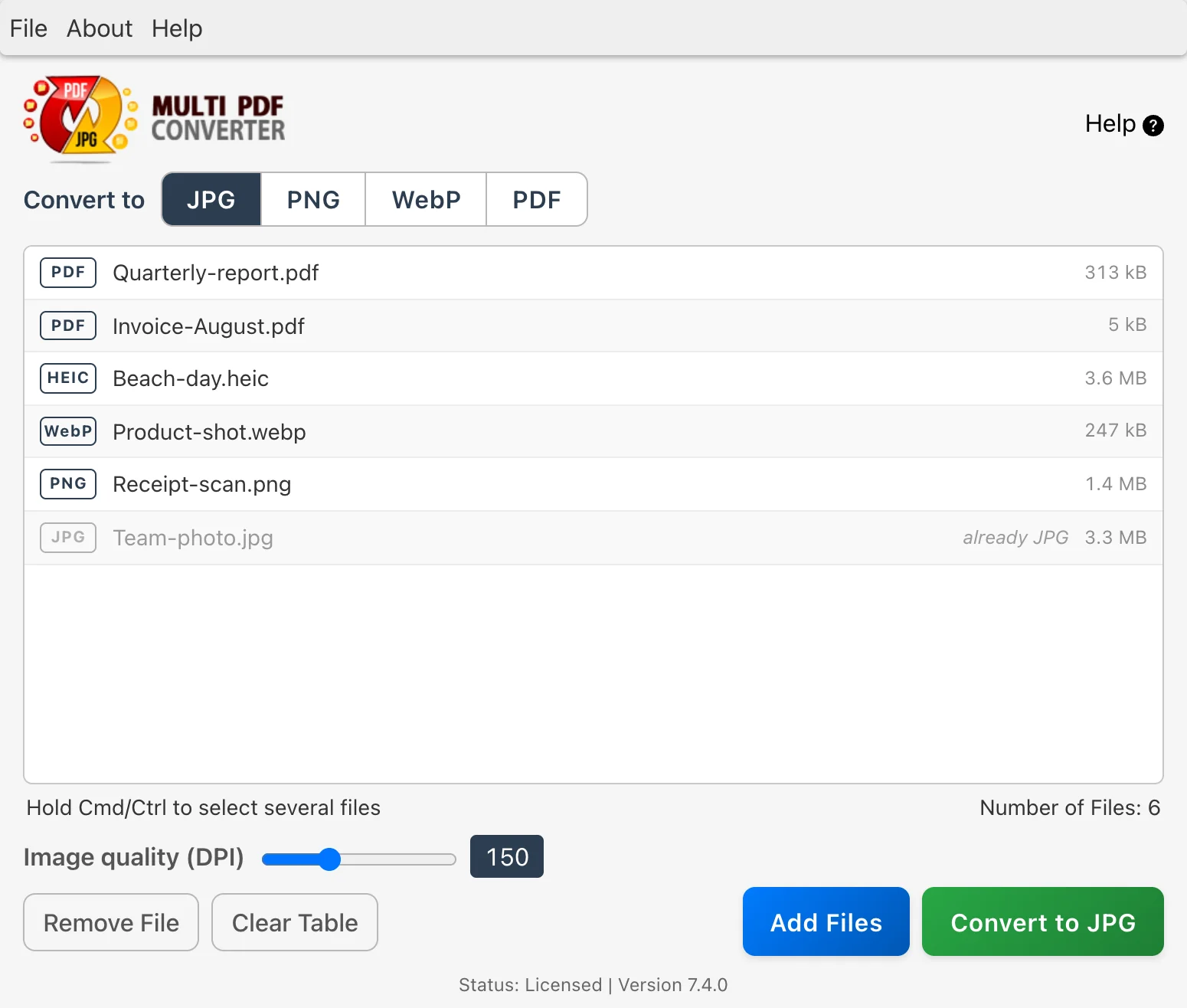
Open Multi PDF Converter. The top of the window reads Convert to [JPG] [PNG] [WebP] [PDF]. Click JPG for photos, or PNG to keep transparent backgrounds. To turn each WebP image into its own PDF instead, click PDF.
Step 3: Add your WebP images
Drag the WebP files, or the whole folder they're in, onto Drop files or folders here. Or click Click here to choose files, and use Add Files to add more later. A dropped folder brings in every image inside it, subfolders included. You can mix in PDFs, HEIC photos and PNGs too; any file that is already in the format you chose is greyed out and skipped.
Step 4: Convert and pick a folder
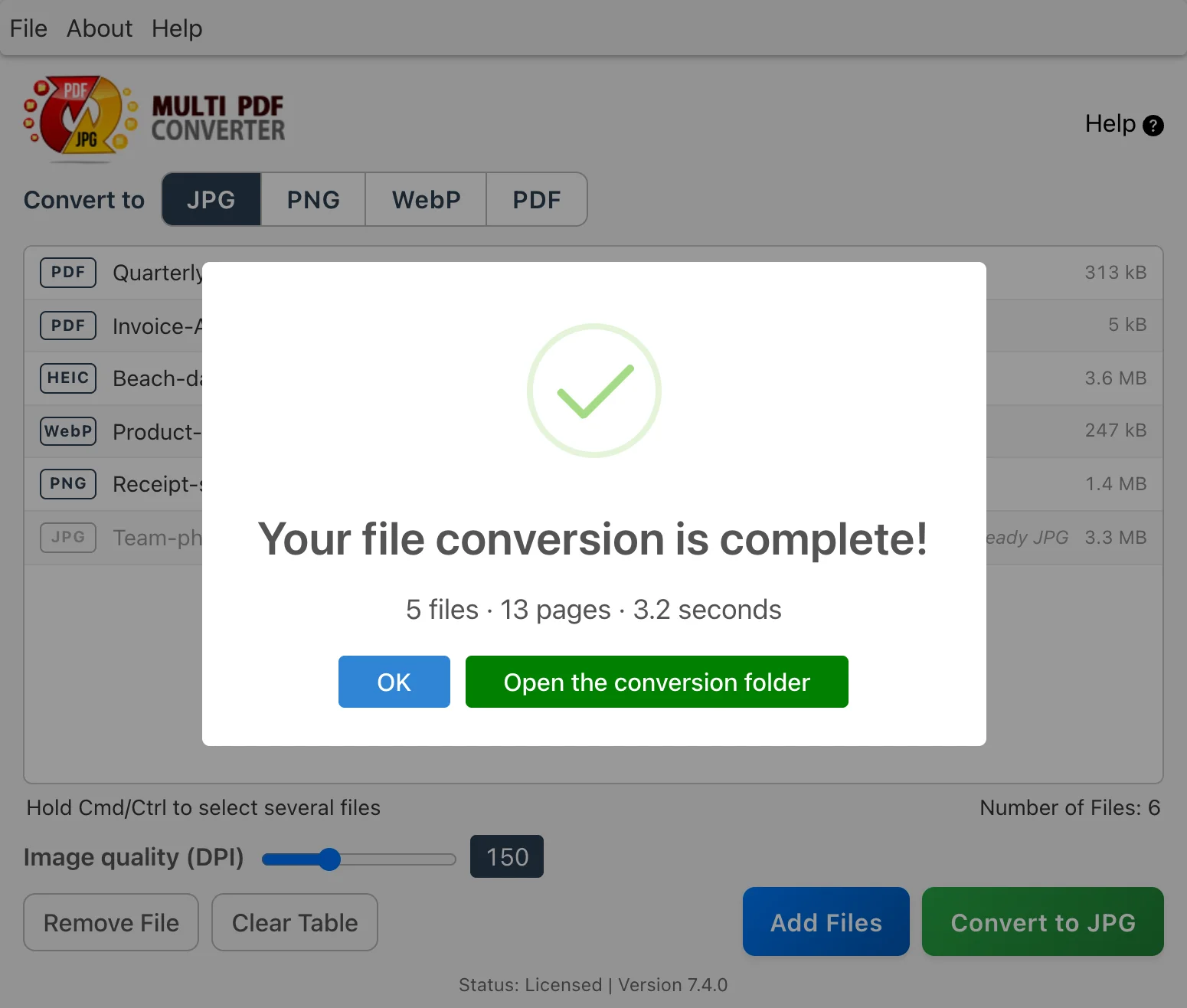
Click Convert to JPG (the button names the format you chose) and pick where to save. The converted images go into a Converted Files folder there, so they never overwrite your originals.
Step 5: Use the converted images
Each WebP image becomes a JPG or PNG with the same name, and photos come out the right way up. If two images would end up with the same name, the second gets " (2)" added rather than replacing the first.
Method 2: Windows Paint (free on Windows)
Windows 10 and 11 can open WebP images in Photos and Paint. If a WebP file won't open, install Microsoft's free WebP Image Extensions from the Microsoft Store. To convert one image:
- Right-click the WebP file and choose Open with → Paint.
- Choose File → Save as, then JPEG picture or PNG picture.
- Name the file and click Save.
- Free and already on your PC
- Fine for one or two images
- One image at a time; no folder conversion
- Windows only
Method 3: Mac Preview and Finder's Convert Image (free on Mac)
Preview opens WebP images on macOS 11 Big Sur and later. Open the image, choose File → Export, pick JPEG or PNG as the format, and save.
For several images at once, use Convert Image in Finder (macOS 12 Monterey and later): select the images, right-click, choose Quick Actions → Convert Image, pick JPEG or PNG and a size, and click Convert. The new copies appear next to the originals.
- Free and built into every recent Mac
- Convert Image handles several images at once
- Mac only
- Convert Image works on the images you select, so images spread across subfolders need selecting folder by folder
Method 4: Browsers and online WebP converters
When a site serves an image as WebP, "Save image as" saves the WebP file. Renaming it from .webp to .jpg doesn't convert it: the image inside is still WebP, and some programs will refuse to open it. The file needs converting.
Online converters let you drag a WebP image in and download a JPG or PNG. That's fine for a picture you don't mind sharing, but every image you convert is uploaded to someone else's server, and free tiers usually cap file size and how many you can convert.
For a few images without uploading anything, try Essex's free Squeeze. It runs in your browser, and its All to JPEG option turns WebP images into JPEGs at a quality you set.
- Nothing to install
- Works on any computer with a browser
- Online converters upload every image
- Free tiers usually cap file size and daily use
- Squeeze makes JPEG from WebP, not PNG
Methods compared at a glance
| Method | Several at once | Whole folders | Files stay on your computer | Runs on | Cost |
|---|---|---|---|---|---|
| Multi PDF Converter | Yes | Yes, subfolders included | Yes | Windows, Mac | Subscription, free trial |
| Windows Paint | No | No | Yes | Windows | Free |
| Mac Preview | No | No | Yes | Mac | Free |
| Finder Convert Image | Yes | Selected images only | Yes | Mac (macOS 12+) | Free |
| Essex Squeeze (JPEG only) | Yes | Yes | Yes, no upload | Any browser | Free |
| Online converters | Capped | No | No, uploaded | Any browser | Free tier limited |
JPG or PNG: which to pick
- Photos, product shots and banners: JPG. The files are smaller and every app, printer and upload form accepts them.
- Logos, icons, screenshots and graphics with text: PNG. It keeps edges and lettering sharp.
- Anything with a transparent background: PNG. JPG can't store transparency, so Multi PDF Converter fills those areas with white.
Going the other way, to make images smaller for your own website? See how to convert PNG and JPG to WebP in bulk.
FAQ: common WebP questions
Related guides
- How to convert PNG and JPG to WebP in bulk
- How to convert PNG to JPG and JPG to PNG
- How to convert HEIC to JPG on Windows & Mac
- How to convert HEIC to PDF (iPhone photos)
- How to batch convert PDF to JPG
- Squeeze: compress and convert photos in your browser, free
- Back to Multi PDF Converter overview
- Download Multi PDF Converter free trial

