How to Batch Convert PDF to JPG — Bulk PDF to JPG Converter for Mac & Windows
Updated May 2026 · Covers bulk PDF to JPG, batch PDF to JPEG, and mass PDF-to-image jobs
If you have a folder of PDFs that need to become JPG images — a year of scanned invoices, a stack of design proofs, a directory full of contract scans — this guide walks through the four practical methods to batch convert PDF to JPG on Mac and Windows in 2026, when each fits, and where each falls short.
Convert PDF to JPG — overview
If you just want to convert a PDF to JPG, every desktop OS and most browsers can do it. The hard part is doing it at scale, with predictable quality, on documents that shouldn't be uploaded anywhere. This guide is built for the bulk end of that spectrum — turning whole folders of PDFs into JPG images in a single pass — but the same four methods cover one-off PDF-to-JPG conversions too:
- Multi PDF Converter — desktop app, batch-native, runs locally on Windows and macOS. Best when you need to convert many PDFs to JPG and keep them off the cloud.
- Adobe Acrobat Pro — converts PDF to JPG one file at a time. Works for one-offs if you already pay for Adobe.
- macOS Preview — free, built into every Mac, one page at a time.
- Online PDF to JPG converters — convenient for a single small file; not for batches and not for anything confidential.
Use the table of contents above to jump straight to the method that fits, or read on for why batch-style PDF-to-JPG conversion needs different tools from single-file conversion.
Going the other direction? Use the free JPG to PDF tool — same methods, reversed.
Why batch matters for PDF-to-JPG jobs
Converting one PDF page to a JPG is easy — every PDF tool on the planet can do it. The problem is volume. The moment you have 20, 50, or 500 PDFs to convert, single-file tools become unworkable:
- A folder of scanned invoices exported as a JPG archive for an accounting workflow.
- A directory of design proofs turned into thumbnail JPGs for a client preview page.
- A batch of contracts converted to images for embedding in a CRM or DAM that only accepts JPG.
- A stack of research papers exported as JPGs for an image-only OCR pipeline or AI vision model.
- A backlog of statement PDFs archived as JPGs so they preview cleanly in chat and message apps.
What "batch" really means here: one button click takes the whole pile to JPG, with consistent quality, into one output folder, with predictable filenames. The four methods below trade speed, cost, and privacy. The right pick depends on how many PDFs you're converting and how sensitive they are.
Method 1: Multi PDF Converter (recommended bulk PDF to JPG converter)
Multi PDF Converter is a desktop app for Windows and macOS purpose-built for bulk and batch PDF-to-JPG jobs. Drop in a stack of PDFs, set the resolution, and every page of every PDF is written as a separate numbered JPG into the output folder you choose. Files never leave your computer.
- Built for batches — no per-job file cap
- Files never leave your computer
- Resolution from 50 to 354 DPI (150 by default)
- Native Windows + macOS builds
- 30-day money-back guarantee
- One output folder, consistent file naming
- Requires download and install
- Paid app (subscription) with a free trial
Step 1: Download Multi PDF Converter
This runs locally on your machine. Download the free trial for Windows or macOS. Try it on your own PDFs before you buy.
Step 2: Pick JPG as the output
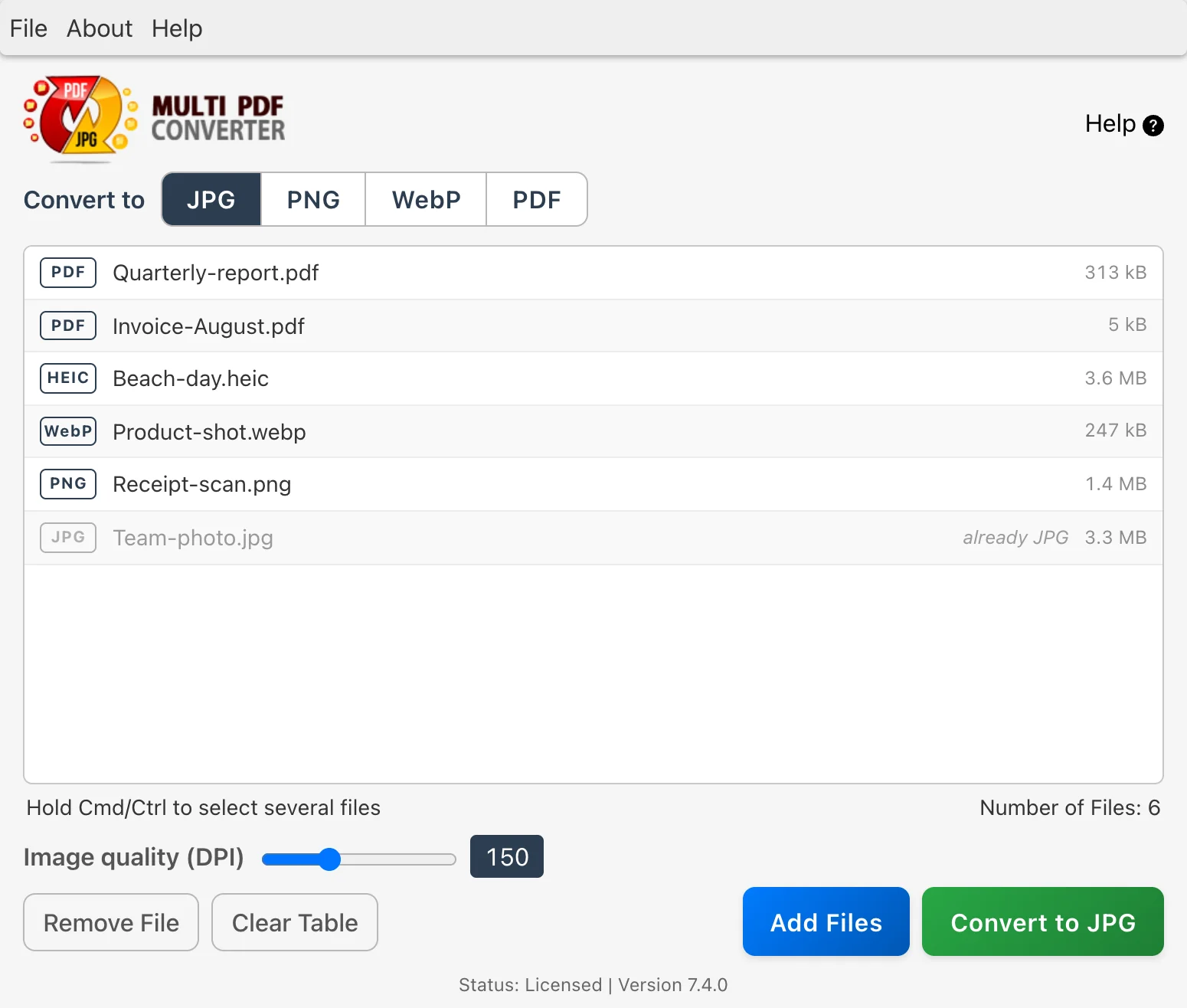
Open Multi PDF Converter and click JPG in Convert to JPG · PNG · WebP · PDF at the top of the window. (Pick PNG instead if you'd rather output sharper, lossless images, or WebP for smaller files — see the JPG vs PNG comparison below for which to pick.)
Step 3: Add the whole batch of PDFs
Drag every PDF you want to convert into the window — all at once — or drop the whole folder they are in (subfolders included). Or click Click here to choose files. There's no cap on how many you add per job; the practical limit is your machine's memory.
Step 4: Set the resolution
When a PDF is listed and the output is an image, the Image quality (DPI) slider appears. It runs from 50 to 354 DPI and starts at 150. One setting covers the whole batch. As a guide:
| Setting | Resolution | Best for |
|---|---|---|
| Low | about 75 DPI | Thumbnails, previews, message attachments |
| Standard | 150 DPI | On-screen viewing, web upload, slide decks (default) |
| High | about 300 DPI | Print-quality archival JPGs, photo proofs |
If you're not sure, leave it at 150. Turn on Remember DPI in Preferences to keep your setting. You can always re-run the batch at a higher DPI later — Multi PDF Converter doesn't modify your source PDFs.
Step 5: Convert the batch in one click
Click Convert to JPG, pick an output folder, and the whole batch runs. Each page of each PDF is written as a separate numbered JPG into a Converted Files folder there. A batch of 50 ten-page PDFs produces 500 JPG files — same predictable naming, same single folder.
Method 2: Adobe Acrobat (one PDF at a time)
If you already have an Adobe Acrobat Pro subscription, its Export PDF tool can turn a PDF into JPGs. Open the PDF, choose File → Export To → Image → JPEG, pick a quality, save. The catch for bulk jobs: Acrobat does one PDF per export action. For a batch of 50 PDFs, that's 50 manual exports — or a custom Action recipe that's brittle and slow to set up.
- Works if you're already in the Adobe ecosystem
- Robust on encrypted or form-heavy PDFs
- Fine-grained quality control per export
- Subscription pricing (~$15–20/month)
- One PDF at a time — bulk requires Action recipes
- Heavy install, frequent updates
- Slow across many files
Method 3: macOS Preview (free, single file)
Mac users can use Preview — it's free and pre-installed. Open a PDF, choose View → Thumbnails, select the page, then File → Export and pick JPEG. The limit: one page at a time, one PDF at a time. Preview isn't a bulk converter. For a single PDF with a few pages it's perfectly fine. For a folder of 50 PDFs, it's not the right tool.
- Already installed on every Mac
- Free, no learning curve
- Fine for one-off small jobs
- One page, one PDF at a time — not a batch tool
- No fixed dpi presets — quality is approximate
- Mac only
Method 4: Online bulk PDF to JPG tools (caps and privacy tradeoffs)
Browser-based bulk PDF-to-JPG tools let you upload a batch and download a ZIP of JPGs. Convenient for one-off non-sensitive files, but with real tradeoffs you need to know about before pointing a folder of contracts at them.
- Nothing to install
- Fine for tiny non-sensitive PDFs
- Every PDF is uploaded — don't use for financial, legal, medical, or HR documents
- Free tiers cap file size (typically 5–25 MB per PDF)
- Free tiers throttle to a handful of conversions per day
- Quality often capped at 72–96 dpi on free tiers
- Slow on large batches — upload speed is the bottleneck
- "Bulk" usually means one PDF at a time anyway
Methods compared at a glance
| Method | True bulk | Files stay local | dpi control | Cost |
|---|---|---|---|---|
| Multi PDF Converter | Yes | Yes | 50 to 354 DPI | Subscription, free trial |
| Adobe Acrobat Pro | No (one PDF per action) | Yes | Fine-grained | ~$15–20 / month subscription |
| macOS Preview | No (one page at a time) | Yes | Approximate | Free |
| Online tools | Capped / throttled | No — uploaded | Usually capped low | Free tier limited; paid plans monthly |
Picking the right JPG quality for batch jobs
For batch jobs, dpi choice matters more than it does for single conversions because the file-size hit multiplies across the whole batch. A 50-PDF batch at 300 dpi produces a folder that's 4–8× the size of the same batch at 75 dpi.
- About 75 DPI — pick if the JPGs are previews, thumbnails, message attachments, or anything that will be viewed at small size. Smallest output folder.
- 150 DPI — the default, and the right pick for most batches. Crisp on screens, good for slide decks, web upload, CRM/DAM embedding.
- About 300 DPI — pick if the JPGs will be printed at original page size. Largest output folder. Skip unless you actually need print-quality.
PDF to JPG vs PDF to JPEG — same thing
"JPG" and "JPEG" are the same image format — the file extension was shortened to three characters in the early days because of DOS-era 8.3 filename limits. Every method above produces files with a .jpg extension. Search results that say "convert PDF to JPEG in bulk" and "convert PDF to JPG in bulk" are asking for the exact same operation.
JPG vs PNG — which to pick
Multi PDF Converter outputs both JPG and PNG. They optimize for different things:
- JPG uses lossy compression. Files are roughly 5–10× smaller than PNG. Great for pages that look like photographs — scans, designs, image-heavy documents. Slight blur or compression artifacts around sharp text edges.
- PNG uses lossless compression. Files are larger, but every pixel is preserved exactly. Better for pages with sharp text, line drawings, diagrams, screenshots, or anything where edges need to stay crisp.
Rule of thumb: if the page is mostly typed text or technical drawings, pick PNG. If the page looks like a photograph or a glossy magazine layout, pick JPG. Need the reverse — starting from images and producing PDFs? Use the free JPG to PDF tool or read how to convert PNG to PDF.
FAQ — bulk and batch PDF-to-JPG questions
Related guides
- JPG to PDF — free in-browser tool + 5 methods compared
- How to convert PNG to PDF — step-by-step methods for Mac & Windows
- How to convert HEIC to JPG on Windows & Mac (batch, offline)
- How to convert WebP to JPG or PNG
- How to convert PNG to JPG and JPG to PNG
- How to convert PNG and JPG to WebP in bulk
- Back to Multi PDF Converter overview
- Download Multi PDF Converter free trial

