
How to Scan to PDF on iPhone
There's a perfectly good PDF scanner already on your iPhone — Apple just hid it inside the Notes app instead of putting it on the home screen. Here's how to find it, plus the file-size and OCR problems that push most regular users to a real scanner app eventually.
Method 1: The built-in Notes scanner (free, 60 seconds)
Available on every iPhone running iOS 13 or newer — meaning every iPhone made since 2015. Apple's VisionKit is what powers this, and it's the same engine many third-party scanner apps wrap up and resell.
- Open the Notes app and create a new note (yellow pencil button, bottom-right).
- Tap the camera icon just above the keyboard.
- Choose Scan Documents.
- Hold your phone over the document. iOS highlights the page edges in yellow and auto-captures when the angle is right — or tap the white shutter for manual capture.
- Adjust corner handles if the auto-crop missed, then tap Keep Scan.
- Repeat for additional pages — they stitch together automatically.
- When done, tap Save. The scan now lives inside your note as a multi-page PDF.
To get the PDF out of Notes as a standalone file:
- Tap the saved scan inside the note to open the preview.
- Tap the share icon (top-right).
- Choose Save to Files (lands in iCloud Drive, On My iPhone, OneDrive, Dropbox, etc.), Mail, Messages, or any other share target.
Shortcut: scan straight into a folder
Skip the Notes step entirely. Open the Files app → navigate to the folder you want the PDF in → tap the ••• menu → Scan Documents. Same scanner, but the PDF lands directly where you want it instead of inside a note you'll have to clean up.
Method 2: Scan straight into an email
If the document is going somewhere by email and you don't need to keep a copy:
- Open Mail and start a new message.
- Long-press inside the message body until the format menu appears.
- Tap the > arrow until you see Scan Document — tap it.
- Capture pages as above and tap Save. The PDF auto-attaches to the draft.
The file-size problem
The biggest gotcha with the built-in scanner is file size. iOS saves scans at full camera resolution with no compression, so a multi-page color document gets huge fast. Real numbers from a recent test:
iOS Notes scan — typical file sizes
Where this breaks
Gmail attachment cap: 25 MB. Outlook.com: 20 MB. IRS Document Upload Tool: 5 MB per file. SSA online forms: 10 MB. Many job-application portals: 5 MB. A 10-page color scan from Notes will be rejected by most of these.
iOS doesn't ship a PDF compressor. To shrink a scan, you need either a scanner app with built-in compression, a web compression tool (which means uploading the document), or a desktop PDF tool.
The OCR problem
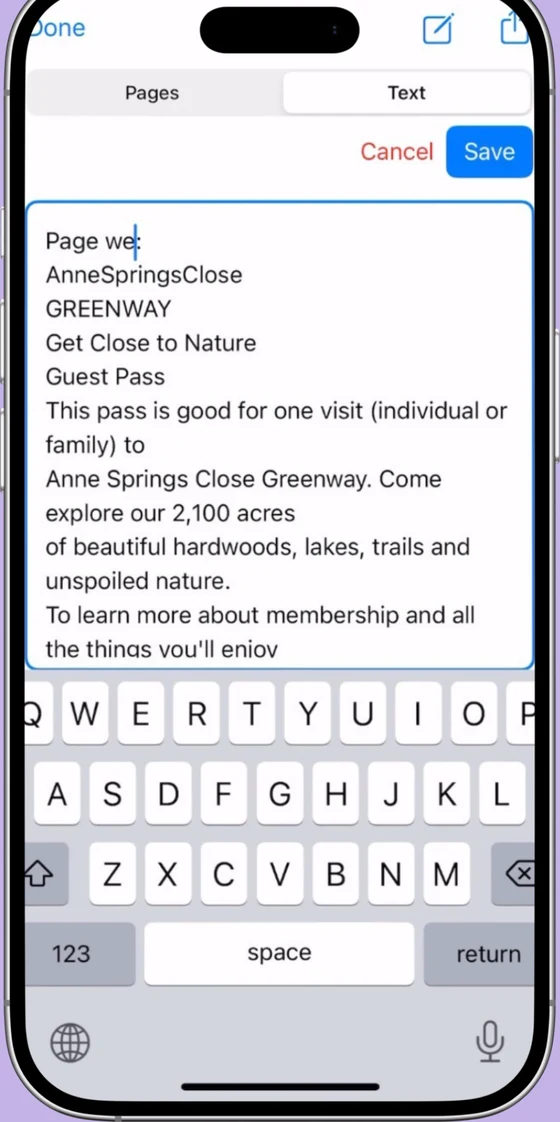
Every scan from iOS Notes is what's called an image PDF — a picture of text, not actual text. You can't search inside it, can't copy a quote, can't feed it to anything that reads PDFs.
For a receipt you're forwarding once, that's fine. For a contract you might need to reference next year, or a stack of receipts you're going to file at tax time, the lack of searchability becomes a real problem fast.
iOS 15+ added Live Text, which lets you long-press inside an image and copy text from it — but the saved PDF is still an image. Screen readers can't read it, and Spotlight can't find words inside it. To get a genuinely searchable PDF you need an app that runs OCR (Optical Character Recognition) as the file is created.
Method 3: Scaniva (when the built-in scanner stops being enough)
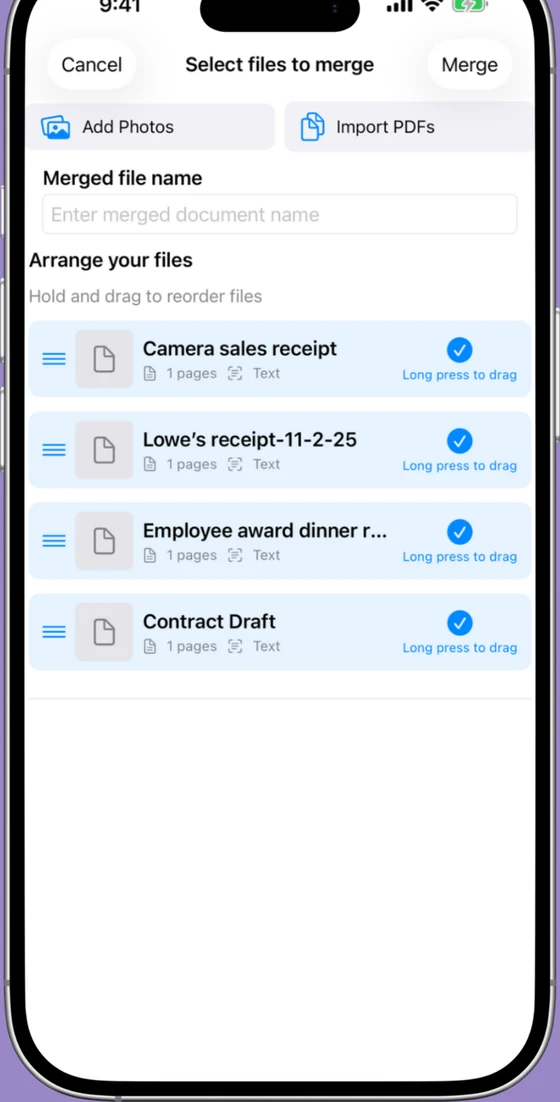
Same camera workflow, but the resulting PDF is searchable (OCR), compressed (~80% smaller), and lands in a dedicated library so you don't have to think about which note it's attached to.
- Open Scaniva. The camera opens directly — no setup, no account.
- Hold the phone over the page. Edge detection finds the corners; auto-capture fires when the angle is clean.
- Tap the next-page button to keep scanning more pages, or the checkmark to finish.
- Apply an enhancement filter if needed (color / grayscale / B&W / magic-color).
- Tap Export → PDF. OCR runs in the background and the PDF lands in your library — already compressed and searchable.
- Share to Files, Mail, Messages, OneDrive, anywhere.
Which method should you use?
- One-off scan, going out the door right now → Notes or Mail. Done in 60 seconds, no install.
- One-off scan, but the file's too big to email → Notes won't help. Either install a scanner with compression or accept that you need to send a download link instead.
- Regular scanning, want everything searchable → A scanner app with OCR. Notes' Live Text is helpful but doesn't produce searchable PDFs.
- You'll scan more than 5 documents a month → A dedicated app saves time per scan (no Notes-app dance) and handles the file-size issue.
Scaniva — when Notes stops being enough
Searchable PDFs with OCR in 14 languages, ~80% file compression, no account, no subscription. Free tier with 10 scans to start, $12.99 one-time to unlock unlimited.
Download on the App StoreFAQ
How do I scan a document to PDF on iPhone for free?
Open the Notes app, tap the camera icon above the keyboard, choose Scan Documents. Capture pages, tap Save, then share the saved scan as a PDF. No app to install, no account, no cost.
Can iPhone scan multiple pages into one PDF?
Yes — the built-in Notes scanner stitches consecutive captures into a single multi-page PDF automatically. Just keep capturing pages before you tap Save.
How do I scan to PDF directly to Files (not Notes)?
Open the Files app, navigate to the folder you want, tap the ••• menu in the top-right, choose Scan Documents. Same scanner, but the PDF saves directly to that folder.
How do I make my iPhone scan smaller?
iOS doesn't include a PDF compressor. You either need a scanner app with built-in compression (Scaniva, Adobe Scan Premium, CamScanner Premium), a desktop tool, or a web-based PDF compressor. Re-scanning in black-and-white using the post-capture filter shrinks the file moderately but not dramatically.
How do I scan to PDF with searchable text?
You need an app that runs OCR. The built-in iOS scanner doesn't — Live Text in iOS 15+ lets you copy from an image, but the saved PDF is still an image. Scanner apps with OCR (Scaniva, Adobe Scan, Microsoft Lens, CamScanner Premium) produce real searchable PDFs.
Where do scanned PDFs save on iPhone?
Notes scans live inside the note you scanned from. Files scans go to whichever folder you started in. Mail scans attach to the draft. None of them appear in the Photos app — scanned documents are stored as PDF files, not as photos.
Can I scan to PDF with a password?
Not with the built-in tools. iOS Notes, Files, and Mail can't password-protect a PDF. To encrypt a scan you need a scanner app with that feature (Scaniva, Adobe Scan with subscription, or a desktop tool after the fact).
What's the best app for scanning to PDF on iPhone?
For "one-time pricing with OCR and compression," Scaniva is the cleanest fit. For "completely free if you don't need OCR," Genius Scan. For "completely free with OCR, if you already have a Microsoft account," Microsoft Lens. Full comparison here.