
How to Scan a Document with iPhone
An iPhone is a surprisingly capable document scanner — better than most people realize, and worse than most reviews admit. Here's what it does out of the box, what the popular apps add, and how to pick the right tool based on how much you actually scan.
What people mean by "scan a document with iPhone"
Three different things go by the same name:
- The built-in scanner Apple ships inside Notes, Files, and Mail. Uses the iPhone camera plus VisionKit to detect page edges, correct perspective, and export a multi-page PDF.
- Third-party scanner apps (CamScanner, Adobe Scan, Microsoft Lens, Genius Scan, Scaniva, etc.) that wrap the same camera-to-PDF workflow with extras — OCR, file organization, compression, batch features, cloud sync.
- External hardware like the Doxie Go or Brother DS-740D, which talk to an iPhone over Wi-Fi. Niche use case; not what most "iPhone scanner" searches are about.
This guide is about the first two. They cover ~99% of what people actually need.
The 30-second answer
Which one should I use?
Option 0 — Scan a document on iPhone with the built-in tools
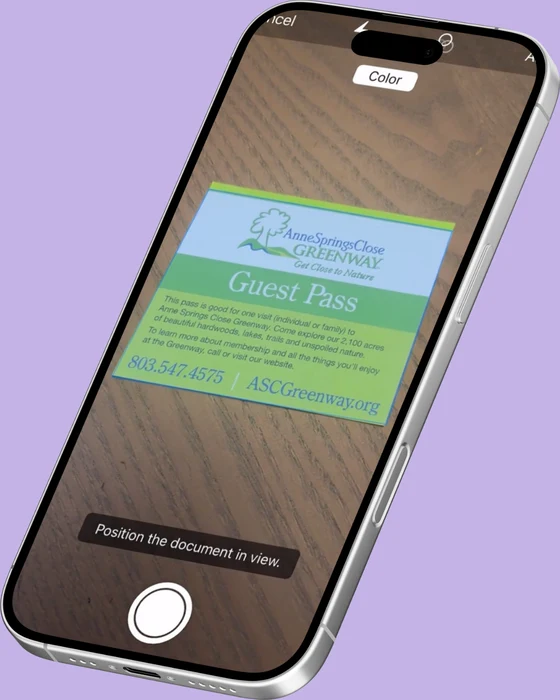
Apple's VisionKit-based scanner is inside Notes (camera icon above keyboard), Files (••• menu → Scan Documents), and Mail (long-press the body → Scan Document). Same engine, three entry points. Output is a clean, multi-page PDF with edge detection and perspective correction.
What it's missing: OCR, compression, a real library, batch features, and any scan modes beyond "rectangular document." Plenty for occasional scans, frustrating for daily use.
Full walkthrough of the three built-in methods →
Option 1 — Scaniva (best one-time-purchase option)
Scaniva
The closest thing to old-style "buy an app, own it" pricing in the iPhone scanner category. 10 free scans to start, with OCR in all 14 languages; $12.99 one-time unlocks unlimited scans. No sign-in, no cloud upload, no subscription.
Best for: people who scan regularly, hate subscriptions, and don't need their documents on someone else's server.
What you give up: cross-device sync (intentional — there's no cloud), and Android support (iOS only).

Option 2 — The free-and-good options
Genius Scan
The veteran of the no-subscription crowd. Best free tier in the category if you don't need OCR — exports are clean, no watermark, no account. Premium ($39.99/yr) adds OCR and cloud sync. Available on iOS and Android.
Microsoft Lens
Free, includes OCR, and integrates directly with Word, Excel, and OneDrive. The catch is that you can't open it without a Microsoft account, and the defaults push everything into OneDrive. If you already work inside Microsoft 365, it's the obvious pick. If you don't, the sign-in is friction.
Adobe Scan
Best-in-class OCR (Adobe's had 30 years of practice). Free scanning and basic OCR work without paying, but the moment you want to merge PDFs, edit, or use any "premium" feature, you're inside a $9.99/month Acrobat subscription. Heavy commitment unless you're already a Creative Cloud subscriber.
Option 3 — The popular-but-expensive options
CamScanner
The default name people associate with phone scanning, mostly because it was first. The current experience is: forced account, watermark on free exports, and one of the more aggressive subscription paywalls. Functional, but most people who go looking for an alternative are leaving for a reason. Six honest alternatives →
iScanner
Polished onboarding and niche features (object counting, measurement). The 3-day "free trial" auto-renews to an annual plan if you don't cancel — a common complaint in App Store reviews.
What separates a good scanner from a great one
Most iPhone scanner apps do the obvious things adequately — camera, edge detection, PDF export. The differences are in the boring middle:
- OCR quality and language coverage. Apple Vision is good in English but spotty on accented characters. Adobe and Scaniva run their own engines with 15+ languages.
- Compression. A multi-page color scan can hit 30 MB straight off the camera. Good scanners re-encode to ~5 MB while keeping the text crisp. Bad ones leave it at 30 MB.
- Scan modes. A "receipt" mode auto-cuts the long thin shape; a "business card" mode crops tight and tries to extract contact info; an "ID" mode handles the glossy reflective surface. The built-in iOS scanner has none of these.
- Library and search. Once you have 200 scans, finding the right one matters more than any individual scan quality.
- Where the file goes. Local-by-default vs auto-upload-to-cloud is a real distinction for tax docs, medical records, contracts, or IDs.
Common mistakes when picking a scanner
- Installing something before trying Notes. If you scan rarely, the built-in tool is genuinely good — installing a paid app for one receipt a month is overkill.
- Picking on App Store rating alone. The 4.8-star app might be the one with the trial-to-annual auto-conversion. Read the 1-star reviews — that's where the billing complaints surface.
- Going subscription without doing the math. Over 5 years, $4.99/week is $1,297. $12.99 one-time is $12.99. The break-even is about 8 weeks.
- Ignoring where scans go. If the scanner asks for an account, your scans probably aren't staying on your phone. That's fine for vacation receipts; less fine for a Social Security card.
Quick filter
If you want the shortest path: try the Notes scanner first (no install). If it doesn't do enough — usually because you need OCR or smaller files — Scaniva and Genius Scan are the two "no subscription" options worth looking at.
Try Scaniva — own the app, keep your scans
OCR in 14 languages, ~80% PDF compression, no account, no cloud, no subscription. Free tier with 10 scans to start, $12.99 one-time to unlock unlimited.
Download on the App StoreFAQ
Does iPhone have a built-in document scanner?
Yes. Notes, Files, and Mail all expose Apple's VisionKit scanner. Open Notes → tap the camera icon above the keyboard → choose Scan Documents. Same scanner, different entry points.
What is the best document scanner app for iPhone?
Depends on the constraint. For "one-time purchase, no subscription, no account" — Scaniva. For "free with OCR if you're a Microsoft user" — Microsoft Lens. For "best free tier, no OCR" — Genius Scan. For "best OCR if you're already on Creative Cloud" — Adobe Scan.
Is there a free iPhone document scanner?
The built-in iOS scanner is free and good enough for occasional use. Among third-party apps: Microsoft Lens and Adobe Scan are free with an account; Genius Scan has a free tier without OCR; Scaniva has a free tier with OCR, limited to your first 10 scans.
Can iPhone scan to PDF?
Yes — natively. Notes saves scans as multi-page PDFs by default. Step-by-step here.
Do I need OCR?
If you'll ever need to search the document, copy a quote from it, or have a screen reader read it — yes. Image-only PDFs (which is what Notes produces) are searchable only by filename. For receipts you're archiving for taxes or contracts you might reference next year, that becomes a real problem.
How do I scan multiple pages into one PDF on iPhone?
Inside Notes' scan view, capture each page in sequence — they stitch into one PDF automatically. In third-party apps, the same pattern: keep capturing pages, then export to a single file.
Why are my scans so blurry?
Usually low light. The iPhone camera needs decent ambient light to autofocus; in dim rooms it falls back to a longer exposure that motion-blurs. Either move under a lamp or turn on the camera flash from inside the scan view.
Why are my scans so large?
iOS Notes saves at full resolution with no compression — a 10-page color scan can easily exceed 25 MB. To shrink it, you need a scanner app with compression. iOS doesn't ship one.