How to Convert JPG to PDF — 5 Methods Compared (Free + Paid)
Updated June 2026 · Covers JPG, JPEG, PNG, and iPhone HEIC images on Mac and Windows
Need to convert a JPG (or JPEG) to PDF? This guide compares the 5 methods that actually work in 2026 — macOS Preview (free, built-in on Mac), Windows Print to PDF (free, built-in on Windows), Adobe Acrobat (paid, if you already have it), Multi PDF Converter desktop app (best for batches of hundreds, no upload), and online tools (fastest for a single image, slowest for privacy). All free options preserve image quality. None of the recommended methods add watermarks. Works for .jpg, .jpeg, .png, and .heic photos from iPhone.
Quick pick: Mac → use Preview, 30 sec · Windows → Print to PDF (free) · Batch hundreds → desktop app · Compare all 5 →
Convert JPG to PDF — overview
To convert JPG to PDF on Mac or Windows, you have five practical options. None of them is "best" in the abstract — the right pick depends on how many images you have, whether the content is sensitive, and whether you already pay for Adobe Acrobat or want a free path.
- macOS Preview — built into every Mac, free, fastest path for a single image on Mac.
- Windows Photos + Print to PDF — built into Windows, free, single-image or small-batch.
- Multi PDF Converter — desktop app, processes many JPGs at once, runs locally on Windows and macOS.
- Adobe Acrobat Pro — works if you already pay for Adobe; otherwise expensive for one task.
- Online JPG to PDF converters — convenient for a single small file; not for sensitive content.
Use the table of contents above to jump to whichever method fits, or read on for the why-and-how of each.
Method 1: macOS Preview (free on Mac)
If you're on a Mac and need to convert a single JPG to PDF — or a small handful — Preview is built into macOS and free. Open the JPG in Preview, choose File → Export as PDF, name the file, save. Done.
For a quick combine — multiple JPGs into a single multi-page PDF — select all the images in Finder, right-click → Open With → Preview, then File → Print → PDF dropdown → Save as PDF. Preview will produce one PDF with each image on its own page.
- Already installed on every Mac
- Free, no install, no signup
- Handles both single conversion and image-stitch into one PDF
- Mac only
- Awkward for large batches — no progress bar, no batch UX
- Print-to-PDF workflow is hidden under File → Print, not File → Export
Method 2: Windows Photos / Print to PDF (free on Windows)
Windows 10 and 11 include a built-in "Microsoft Print to PDF" virtual printer. Open the JPG in the Photos app, hit Ctrl+P, pick Microsoft Print to PDF as the printer, click Print, and save the resulting PDF.
For multiple JPGs in a single PDF, select all of them in File Explorer, right-click → Print, choose Microsoft Print to PDF, then Print. Windows will write one PDF containing each image on its own page.
- Already installed on every Windows 10/11 machine
- Free, no install
- Handles single conversion and image-stitch into one PDF
- Windows only
- "Print" UI is unintuitive for non-Windows users
- No quality controls — uses default print settings
Method 3: Multi PDF Converter (for batches of many files)
Multi PDF Converter is a desktop app for Windows and macOS that converts JPG (and JPEG and PNG) images to PDF files locally on your computer. Use it when you have more than a handful of images to convert, when the content shouldn't be uploaded anywhere, or when you want one tool that handles both directions — JPG to PDF and PDF to JPG. For a single image, the built-in OS methods above are faster.
- Handles many images in one job
- Files never leave your computer
- Native Windows + macOS builds
- Same tool also converts PDF to JPG, PDF to PNG, and PNG to PDF
- 30-day money-back guarantee
- Accepts JPG, JPEG, and PNG
- Requires download and install
- Free 30-day trial, then subscription (~$6–8/mo)
- Creates one PDF per image — see merge vs. convert if you want all images in a single combined PDF
Step 1: Download Multi PDF Converter
This runs locally on your machine. Download the free trial for Windows or macOS. The trial works without a license so you can convert your full batch end-to-end before deciding.
Step 2: Pick JPG to PDF as the conversion pair
Open Multi PDF Converter and select JPG to PDF from the format selector. The same workflow also handles PNG images — pick PNG to PDF if your images are PNG, or include them in a JPG batch (Multi PDF Converter accepts mixed input).
Step 3: Add your JPG images
Drag every JPG file into the main window — all at once. Or click Choose files and multi-select from a folder. Both .jpg and .jpeg extensions are accepted.
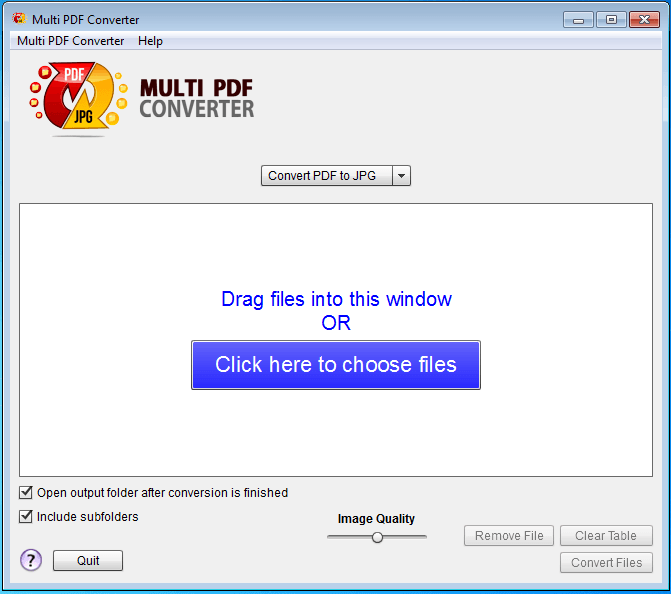
Step 4: Convert and pick an output folder
Click Convert Files and choose where to save. Multi PDF Converter writes a PDF for each input image into the folder you pick. Your original JPGs are left untouched.
Step 5: Open the converted PDFs
Each input JPG produces a PDF with the same filename. Open any of them to confirm the image embedded cleanly. Quality matches the source image — converting JPG to PDF doesn't re-compress or alter the pixels.
Method 4: Adobe Acrobat (if you already have a subscription)
If you already pay for Adobe Acrobat Pro, its Create PDF tool covers the same workflow. Open Acrobat, choose File → Create → PDF from File, pick the JPG, save. Or Combine Files for several JPGs into one PDF.
- Best if you're already in the Adobe ecosystem
- Strong combine UI for stitching many images into one PDF
- Page-size and orientation controls
- Subscription pricing (~$15–20/month)
- Overkill for a single-image conversion
- Heavy install, frequent updates
Method 5: Online JPG to PDF converters (caps and privacy tradeoffs)
Browser-based tools let you drag a JPG in and download a PDF. Fine for a one-off non-sensitive image. The catch: most upload every image to a third-party server. A small but growing category of in-browser tools run conversion locally in the browser via WebAssembly — our own free in-browser JPG to PDF converter works that way, so files never leave your device. That's the safer pick if you want a no-install option without the upload risk.
- Nothing to install
- Cross-platform — works on Chromebooks, phones, tablets
- Fine for tiny non-sensitive files
- Every image is uploaded — don't use for IDs, contracts, financial photos, medical scans
- Free tiers cap file size (typically 5–25 MB)
- Free tiers throttle to a handful per day
- Slow on large images or weak connections
- Bulk uploads usually mean one at a time anyway
Methods compared at a glance
| Method | Many at once | Files stay local | Cost | Best for |
|---|---|---|---|---|
| Multi PDF Converter | Yes | Yes | Free trial → subscription from ~$6/mo | Batches; mixed JPG / JPEG / PNG; bidirectional with PDF→JPG |
| macOS Preview | Small batches only | Yes | Free | Single image on Mac; quick stitch into one PDF |
| Windows Photos / Print to PDF | Small batches only | Yes | Free | Single image on Windows; quick stitch into one PDF |
| Adobe Acrobat Pro | Yes (Combine) | Yes | ~$15–20 / month | If you already have Adobe; fine-grained controls |
| Online tools | Capped / throttled | No — uploaded | Free tier limited | One-off non-sensitive image; Chromebook |
Convert vs. merge — single PDFs or one combined PDF
Two different outcomes people mean by "convert JPG to PDF":
- Convert — each JPG becomes its own PDF file. A batch of 10 JPGs produces 10 PDFs. This is what Multi PDF Converter does, and what Adobe Acrobat does by default on single-file conversion.
- Merge / stitch — multiple JPGs are combined into a single multi-page PDF (one image per page). Most native Mac/Windows print-to-PDF workflows produce this if you start from a multi-selection.
Pick by what the receiving system wants. If you're uploading proof-of-purchase photos to a portal that takes individual PDFs, convert. If you're producing a single document like "all my receipts from January in one file," merge. The methods above cover both: Multi PDF Converter is the convert-each option; macOS Preview, Windows Print to PDF, and Adobe Acrobat Combine all handle the merge-into-one option.
JPG vs. JPEG — same format, same conversion
"JPG" and "JPEG" are the same image format — the extension was shortened to three characters in the DOS era because of 8.3 filename limits. Every method above accepts both .jpg and .jpeg files. Search results that say "convert JPEG to PDF" and "convert JPG to PDF" are asking for the exact same operation.

