How to Merge PDF Files — Combine PDFs on Mac & Windows
Updated May 2026 · Covers merge PDFs, combine PDFs, join PDF files, and merging multiple PDFs at once
Two PDFs that need to become one — a cover letter plus a resume, a contract plus its appendix — or fifty exhibits that have to ship as a single bundle. Whatever the volume, this guide walks through the four practical methods to merge PDF files on Mac and Windows in 2026, with the when-each-fits notes that the upload-and-pray tutorials skip.
Merge PDF files — overview
To merge PDF files on Mac or Windows, the four practical methods look like this:
- Batch PDF Merger — desktop app, processes many PDFs in one job, runs locally on Windows and macOS.
- macOS Preview — built into every Mac, free, fine for combining two or three PDFs.
- Adobe Acrobat Pro — strong Combine Files UI. Works if you already pay for Adobe.
- Online PDF merge tools — convenient for a one-off small set; not for sensitive content.
Jump straight to the method that fits your case, or read on for the why-and-how of each.
Method 1: Batch PDF Merger (recommended for many files)
Batch PDF Merger is a desktop app for Windows and macOS purpose-built for combining many PDFs into one. Drop in a stack of PDFs (or a folder), set the order, click Merge Files. It's the right pick when you have more than a handful of PDFs to combine, when files shouldn't be uploaded, or when you want one tool that also handles split, rearrange, and compress.
- Handles many PDFs in one job (folder mode)
- Files never leave your computer
- Native Windows + macOS builds
- Also handles split, rearrange, compress, renumber
- 30-day money-back guarantee
- Requires download and install
- Paid app after 30-day trial
Step 1: Download Batch PDF Merger
This runs locally on your machine. Download the free trial for Windows or macOS. The trial works without a license so you can merge your full set end-to-end before deciding.
Step 2: Add your PDF files
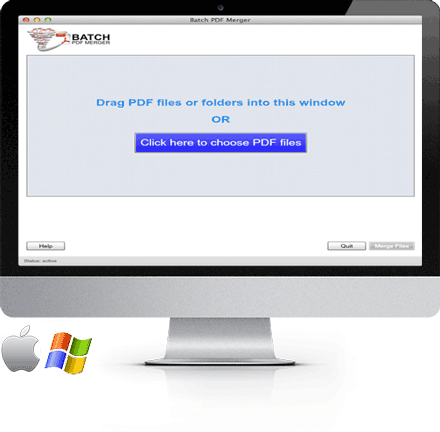
Drag every PDF into the main window — or drag a folder. Alternatively, click Click here to choose PDF Files to browse and select. The files appear in a list in the order they were added.
Step 3: Set the merge order
Reorder the file list so the merge runs in the sequence you want. For finer page-level reordering across files, click Split/View Page to see every page as a thumbnail you can drag — see also our guide on rearranging PDF pages.
Step 4: Click Merge Files
Click the Merge Files button to combine every PDF into one. The merge is a structural concatenation — page content is not re-encoded, so quality matches the source files exactly.
Step 5: Save the combined PDF
Pick a destination for the single combined output. Your original PDFs are left untouched.
Method 2: macOS Preview (free, Mac only)
If you're on a Mac and need to combine just two or three PDFs, Preview is built in and free. Open the first PDF, choose View → Thumbnails to expose the sidebar, then drag a second PDF from Finder onto the sidebar. Preview appends it. Repeat for each additional PDF, then File → Export as PDF to save the combined file.
- Already installed on every Mac
- Free, no install
- Visual page-level control
- Mac only
- One PDF at a time append — tedious above 3–4 inputs
- Slow above ~500 combined pages
Method 3: Adobe Acrobat (if you already have a subscription)
If you already pay for Adobe Acrobat Pro, its Tools → Combine Files tool covers the same workflow. Drag PDFs into the combine window, drag thumbnails to set order, click Combine. Good UI, but expensive if all you needed was merging.
- Strong Combine Files UI with per-page thumbnail control
- Robust on encrypted or form-heavy PDFs
- Works if you're already in the Adobe ecosystem
- Subscription pricing (~$15–20/month)
- Heavy install, frequent updates
- Overkill for occasional merging
Method 4: Online PDF merge tools (caps and privacy tradeoffs)
Browser-based tools let you upload PDFs and download the combined result. Convenient for one-off non-sensitive sets — but every PDF is uploaded to a third-party server, and free tiers cap on file size and per-day count.
- Nothing to install
- Cross-platform — works from Chromebooks, phones
- Fine for tiny non-sensitive files
- Files are uploaded — don't use for confidential, legal, medical, or financial PDFs
- Free tiers cap file size and count
- Slow upload on big files
- Free tiers throttle to a few merges per day
Methods compared at a glance
| Method | Many PDFs at once | Files stay local | Page-level reorder | Cost |
|---|---|---|---|---|
| Batch PDF Merger | Yes | Yes | Yes (Split/View Page) | One-time after 30-day trial |
| macOS Preview | Small sets only | Yes | Yes (Thumbnails sidebar) | Free (Mac only) |
| Adobe Acrobat Pro | Yes | Yes | Yes | ~$15–20 / month |
| Online tools | Capped / throttled | No — uploaded | Varies | Free tier limited |
Merge vs. combine vs. join — same operation
"Merge PDF," "combine PDF," and "join PDF" all describe the same operation: take multiple PDF files and produce a single PDF containing all the pages in a chosen order. Different tools use different terminology — Adobe says "combine," Preview implies "merge" by appending to thumbnails, Batch PDF Merger uses "Merge Files." The output is the same: one PDF, all the input content, in the order you set.
Controlling the order of the merged PDF
For most use cases, the file-list order is enough — drag the files into the sequence you want before clicking Merge. For finer control over pages within or across files (move page 3 of file A to between pages 7 and 8 of file B), Batch PDF Merger's Split/View Page mode opens every page as a draggable thumbnail. See how to rearrange PDF pages for the detailed walkthrough.

