How to Compress a PDF — Reduce PDF Size on Mac & Windows
Updated May 2026 · Covers compress PDF, reduce PDF file size, shrink PDF, and bulk compression
A PDF that's too big to email. A scan archive eating disk space. A document portal that rejects uploads above 5 MB. Whatever the reason — this guide walks through the four practical methods to compress a PDF on Mac and Windows in 2026, with the quality-vs-size tradeoffs that every tool's UI glosses over.
Compress a PDF — overview
If you just want to compress a PDF — make it smaller without losing what's on the pages — the four practical methods on Mac and Windows are:
- Batch PDF Merger — desktop app, processes many PDFs at once, runs locally on Windows and macOS.
- Adobe Acrobat Pro — single-file compression with fine-grained control. Works if you already pay for Adobe.
- macOS Preview — built-in Quartz Filter "Reduce File Size." Free on Mac, results vary by document.
- Online PDF compressors — convenient for one-off small files; capped, throttled, and uploaded.
Jump straight to the method that fits, or read on for the why-and-how of each.
Method 1: Batch PDF Merger (recommended for batches and large files)
Batch PDF Merger is a desktop app for Windows and macOS that compresses PDFs locally. It's the right pick when you have multiple PDFs to compress in one job, very large PDFs that online tools can't handle, or sensitive content that shouldn't be uploaded.
- Compresses many PDFs in one job (folder mode)
- Handles large files that online tools cap out on
- Files never leave your computer
- Native Windows + macOS builds
- Also handles merge, split, rearrange, renumber
- 30-day money-back guarantee
- Requires download and install
- Paid app after 30-day trial
Step 1: Download Batch PDF Merger
This runs locally on your machine. Download the free trial for Windows or macOS. The trial works without a license so you can compress your batch end-to-end before deciding.
Step 2: Add your PDF files
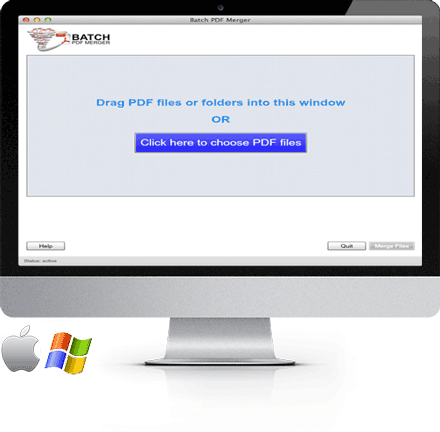
Drag the PDFs into the main window — or drag an entire folder. Alternatively, click Click here to choose PDF Files to browse and select.
Step 3: Choose Compress
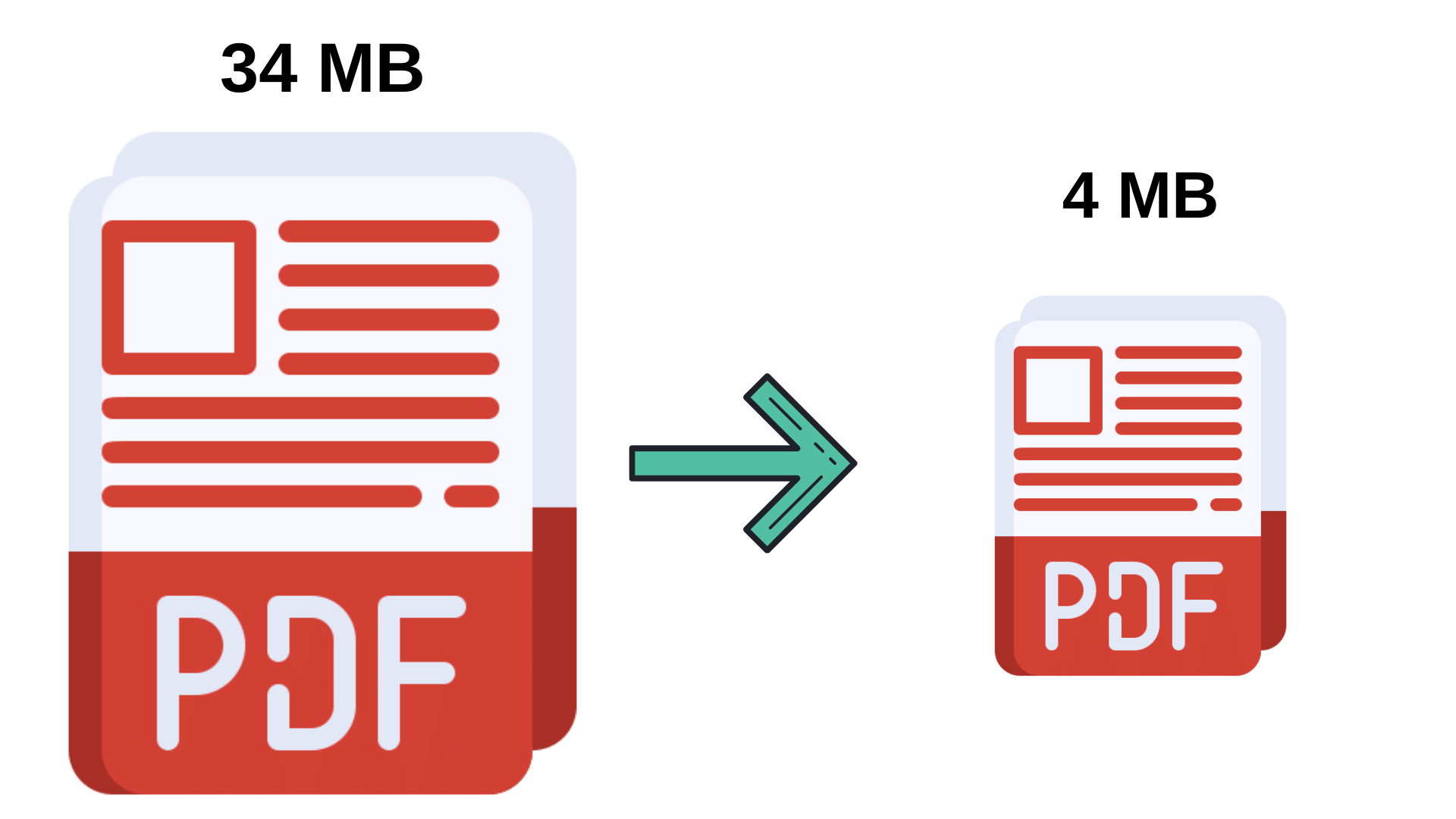
Pick the Compress action. Batch PDF Merger reduces file size by re-encoding embedded images at sensible resolutions and stripping redundant metadata, while preserving the visual content of the document.
Step 4: Pick the output folder
Choose where to save the smaller PDFs. Your original PDFs are left untouched.
Step 5: Open the compressed files
Open the output folder and compare file sizes — the size drop will depend on what's inside (scanned-image PDFs shrink the most). Open one or two compressed files to confirm the visual quality is what you need.
Method 2: Adobe Acrobat (if you already have a subscription)
If you already pay for Adobe Acrobat Pro, File → Save As Other → Reduced Size PDF covers single-file compression. For more control, File → Save As Other → Optimized PDF exposes per-asset settings (image downsampling, font subsetting, metadata removal) so you can squeeze out the maximum reduction for a known acceptable quality level.
- Best fine-grained control of any tool
- Optimized PDF dialog shows where the size lives in your document
- Works if you're already in the Adobe ecosystem
- Subscription pricing (~$15–20/month)
- Single file at a time — bulk via Action recipes is brittle
- Heavy install
Method 3: macOS Preview (free, Mac only)
If you're on a Mac and need a free one-off compression, Preview's File → Export → Quartz Filter → Reduce File Size shrinks PDFs in one click. The catch: there's no quality control — the filter applies an aggressive downsample that can soften scanned text and dampen photo color noticeably. Fine for casual sharing, less suitable for archival or printable PDFs.
- Already installed on every Mac
- Free, no install, one-click
- Mac only
- No quality control — fixed aggressive setting
- One file at a time
- Can over-compress (soften scanned text)
Method 4: Online PDF compressors (upload caps and privacy tradeoffs)
Browser-based tools let you upload a PDF and download a smaller version. Convenient for a one-off — but every PDF is uploaded to a third-party server, and free tiers cap on file size and per-day count.
- Nothing to install
- Cross-platform — works from Chromebooks, phones
- Fine for tiny non-sensitive files
- Files are uploaded — don't use for confidential, legal, medical, or financial PDFs
- Free tiers cap file size (typically 25–50 MB) — fails on the very files that most need compressing
- Slow upload on big files
- Free tiers throttle to a few compressions per day
Browser-only alternative — no upload, no cap
If you want the convenience of "open a page and drop a PDF" without your file leaving your device, our free browser PDF compressor runs entirely on your computer. No upload to a server, no per-day cap, no file-size limit beyond your browser's memory. Drop a PDF, pick a preset, download a smaller copy.
Methods compared at a glance
| Method | Bulk / many files | Large PDFs | Files stay local | Cost |
|---|---|---|---|---|
| Batch PDF Merger | Yes (folder mode) | Yes | Yes | One-time after 30-day trial |
| Adobe Acrobat Pro | No (one at a time) | Yes | Yes | ~$15–20 / month |
| macOS Preview | No | Slow above 500 pages | Yes | Free (Mac only) |
| Online tools | No | No (upload caps) | No — uploaded | Free tier limited |
| Essex browser compressor | One at a time | Yes (browser memory) | Yes — runs in your browser | Free, no caps |
How much can a PDF actually compress?
The honest answer: it depends on what's inside. PDF compression mostly comes from re-encoding embedded images and stripping redundant metadata. Three rough categories:
- Scanned-image PDFs — often shrink 50–80%. Scans store each page as a high-resolution image that's easy to compress further.
- Mixed text + photo documents — typically shrink 20–50%. Brochures, reports with charts, magazine PDFs.
- Text-only PDFs — shrink under 20%, often closer to 5%. Already efficiently encoded; not much fat to trim.
If a PDF is already small for its content, no compressor will magic it smaller. The size floor is determined by what's actually in the file.
Compress many PDFs in one job
If you've got a folder of PDFs that all need to shrink — a year of scanned invoices, a backlog of report exports, a directory of bid documents — single-file tools become unworkable above a handful of PDFs. Batch PDF Merger accepts a folder of PDFs in one drop and compresses every one of them, writing smaller copies into a single output folder.
Adobe Acrobat's Action recipes can be configured to do similar work, but the setup time often exceeds the actual job time. Online tools cap at one file per upload on the free tiers.

